Customize Transparency Center appearance
Your Transparency Center should look and feel like part of your brand, not a third-party add-on. Dxtra provides branding controls in the dashboard for non-technical users and CSS custom properties for developers who embed the components.
Dashboard branding (all users)
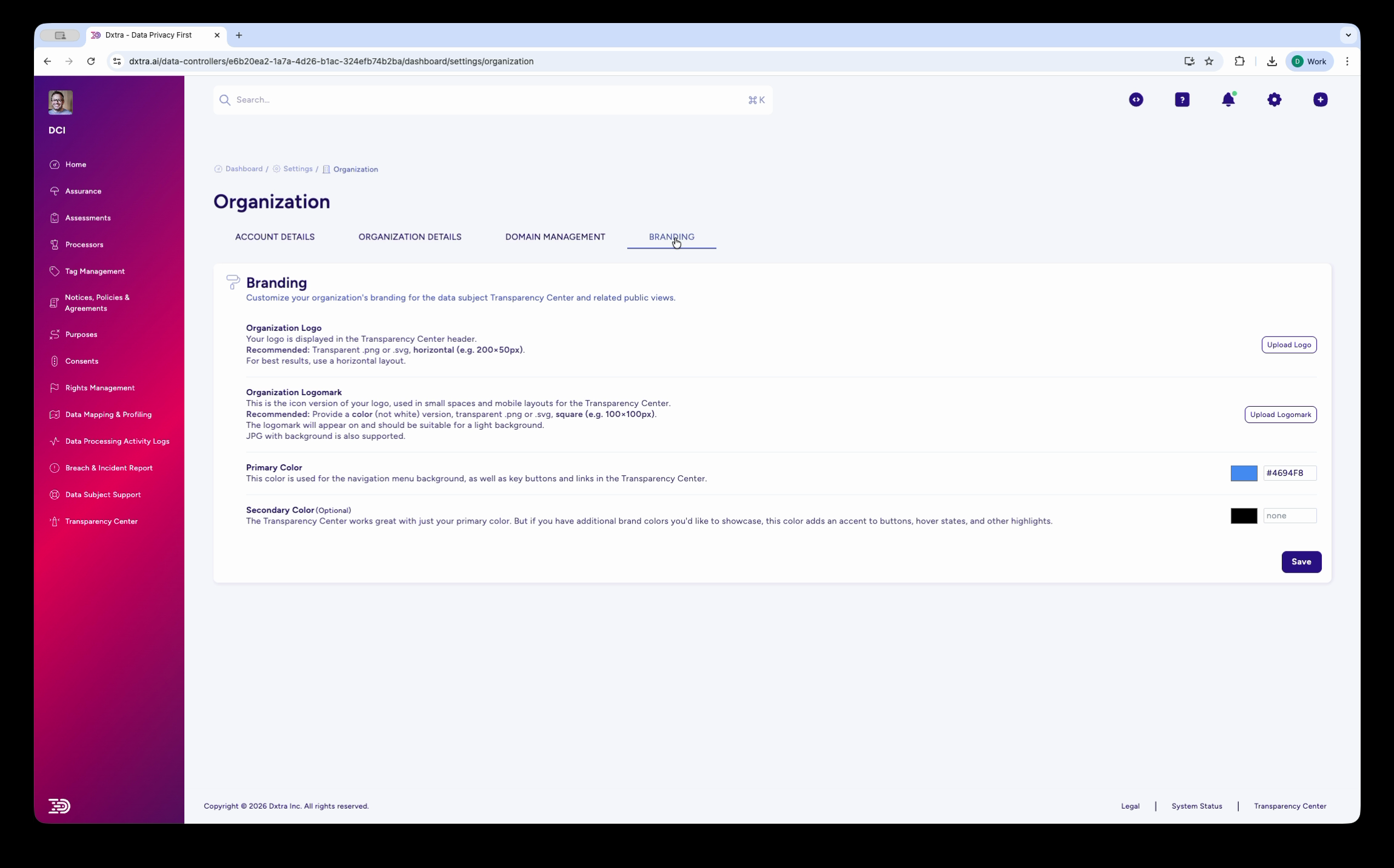
Go to Organization > Branding in the Dxtra dashboard. This is the same page you configure during setup, but you can return here at any time to update your branding.
Logo
Organization Logo — The primary logo displayed in the Transparency Center header alongside the "Transparency Center" label. Upload a transparent PNG or SVG in horizontal orientation, minimum 300×92px. Click "Replace" to swap an existing logo.
Organization Logomark — A smaller square version used in magic link invitation emails and mobile layouts. Upload a transparent PNG or SVG, 192×192px.
Tip
Use a logo with a transparent background so it sits cleanly against both light and dark Transparency Center themes.
Colors
Two color settings control the Transparency Center palette:
Primary Color — Controls the navigation menu background, primary buttons, and links. Enter a hex color code (e.g. #7C3AED for purple). This color appears prominently throughout the portal, so choose a color with strong brand recognition.
Secondary Color — Controls accent buttons, hover states, and highlights. Enter a hex color code (e.g. #1484E8 for blue). This provides visual contrast against the primary color.
Color contrast
Choose colors with sufficient contrast against white and dark backgrounds. The Transparency Center must remain readable for all users, including those with visual impairments. Aim for a minimum 4.5:1 contrast ratio for text.
Saving changes
Click Save after making changes. Branding updates apply immediately to the hosted Transparency Center and are picked up by embedded web components on the next page load.
CSS customization (developers)
When embedding the Transparency Center as a web component, you can override the visual appearance using CSS custom properties. These work on the full <transparency-center> component and on standalone components (<dx-consents>, <dx-rights-management>, etc.).
Color properties
transparency-center {
  /* Primary brand color — nav, buttons, links */
  --primary-color: #7C3AED;

  /* Secondary accent — hover states, secondary buttons */
  --secondary-color: #1484E8;

  /* Background */
  --background-color: #ffffff;

  /* Text */
  --text-color: #1f2937;

  /* Borders and dividers */
  --border-color: #e5e7eb;
}
Typography properties
transparency-center {
  --font-family: 'Inter', -apple-system, BlinkMacSystemFont, sans-serif;
  --font-size-base: 16px;
  --font-size-lg: 18px;
  --font-weight-normal: 400;
  --font-weight-bold: 600;
}
Spacing and shape properties
transparency-center {
  --spacing-unit: 8px;
  --border-radius: 6px;
  --shadow-sm: 0 1px 2px rgba(0, 0, 0, 0.05);
  --shadow-md: 0 4px 6px rgba(0, 0, 0, 0.1);
}
Dark mode
Set color-theme="dark" on the component for a dark background variant:
<transparency-center
  data-controller-id="YOUR_DATA_CONTROLLER_ID"
  color-theme="dark"
></transparency-center>
You can also override dark mode colors with CSS custom properties:
transparency-center[color-theme="dark"] {
  --background-color: #1a1a2e;
  --text-color: #e5e7eb;
  --border-color: #374151;
}
Multi-language configuration
The Transparency Center renders all content in the language you configure. This includes AI-generated privacy notices, consent category labels, navigation, disclosure descriptions, and help content.
Setting the default language
Configure your default language in the Dxtra dashboard under language settings. The Transparency Center automatically renders in this language.
Supported languages
Language availability depends on your plan:
| Plan | Languages |
|---|---|
| Start ($10/month) | English + 1 additional |
| Growth ($25/month) | English + 2 additional |
| Scale ($100/month) | English + 3 additional |
| Enterprise ($1,000/month) | English + 10 additional |
Dxtra's AI engine generates documents across 12+ languages using expert-curated legal terminology glossaries, ensuring that legal and compliance terms are accurately translated.
Setting language on embedded components
Use the language attribute to set the display language:
<transparency-center
  data-controller-id="YOUR_DATA_CONTROLLER_ID"
  language="ja"
></transparency-center>
Common language codes: en (English), de (German), fr (French), es (Spanish), ja (Japanese), pt (Portuguese), nl (Dutch).
Right-to-left support
The Transparency Center automatically adapts its layout for right-to-left languages like Arabic and Hebrew. No additional configuration is needed — set the language code and the layout adjusts accordingly.
Content sections
The Transparency Center displays the following sections to data subjects. All content is pulled automatically from your Dxtra workspace configuration:
| Section | Source in Dxtra | What data subjects see |
|---|---|---|
| Overview | Workspace configuration | Summary tiles with counts for notifications, privacy documents, disclosures, consents, rights requests, privacy signals |
| Notifications | System notifications | Welcome messages, policy change alerts |
| Privacy Notice | AI-generated notices (approved) | Four-format tabbed view: Privacy Labels, Privacy Overview, Comprehensive Notice, Cookie & Tracking Technologies Notice |
| Disclosures | Processing purposes | Individual data processing disclosures grouped by purpose |
| Consents | Consent categories and purposes | Toggle controls for each consent purpose and preference category |
| Rights Management | Rights configuration | Request history with status tracking and a form to submit new requests |
| Data Mapping & Profiling | Processor integrations | Visual display of detected personal data identifiers and which processors handle them |
| Processing Activity Log | Processor event feeds | Paginated, filterable table of all data processing events |
| Help | Help center configuration | AI-assisted FAQ and self-service support |
You control what appears by configuring each capability area in the Dxtra dashboard. For example, toggling off a rights type in Rights Management removes it from the Transparency Center's request form.
Matching your website style
To make the Transparency Center feel consistent with your existing website:
- Identify your website's primary and secondary brand colors (inspect the CSS or check your design system)
- Set those colors in Organization > Branding in the Dxtra dashboard
- Upload your logo with a transparent background
- If embedding, use CSS custom properties to match typography (font family, sizes, weights)
- Preview the result — the Transparency Center header and navigation should visually align with your site
Accessibility
The Transparency Center maintains WCAG 2.1 Level AA compliance across all customization options:
- Minimum 4.5:1 contrast ratio for body text
- Clear keyboard navigation with visible focus indicators
- Alt text on all images and icons
- Responsive design that works across screen sizes and zoom levels
- Semantic HTML structure for screen readers
If you set custom colors that create insufficient contrast, test them with a contrast checker before publishing.
Related
- Set up your Transparency Center — Initial configuration and publishing
- Embed as a web component — Framework-specific integration guides
- Multi-lingual support — Platform-wide language configuration
Need help? Email support@dxtra.ai or use in-app chat for assistance with Transparency Center customization.