Stripe integration
Beta — Integration details
This integration's setup steps are based on standard Stripe webhook patterns. Specific webhook event types, signature verification, and authentication credentials will be verified against the live Dxtra application. If you encounter differences, please report an issue.
Connect Stripe to Dxtra to automatically track payment processing activities, manage data subject rights for payment data, and maintain compliance with GDPR and CCPA requirements.
Overview
When you accept payments via Stripe, Stripe processes personal data including credit/debit card information, billing addresses, customer identity, and transaction history. Dxtra tracks this data processing relationship through webhook integration, helping you maintain compliance documentation and respond to data subject rights requests.
What Dxtra Tracks from Stripe
| Data Category | Details |
|---|---|
| Customer records | New customers, profile updates, customer deletion |
| Payment intents | Payment attempts and completions |
| Subscriptions | Recurring billing events (created, updated, canceled) |
| Invoices | Invoice creation, payment, and status changes |
Dxtra uses the customer email address to link payment events to data subjects and creates a record of payment data processing in your Processing Activity Log.
Add Stripe as a data processor
Before configuring the webhook, add Stripe as a data processor in Dxtra:
- Go to Processors in the Dxtra dashboard sidebar
- In the Onboard a Data Processor section, select Stripe from the dropdown
- Review the processor details — Dxtra shows Stripe's description and the data processing relationship
- Enter your Stripe Restricted Key when prompted
- Your Data Controller DID is displayed automatically
- Click Confirm and Onboard
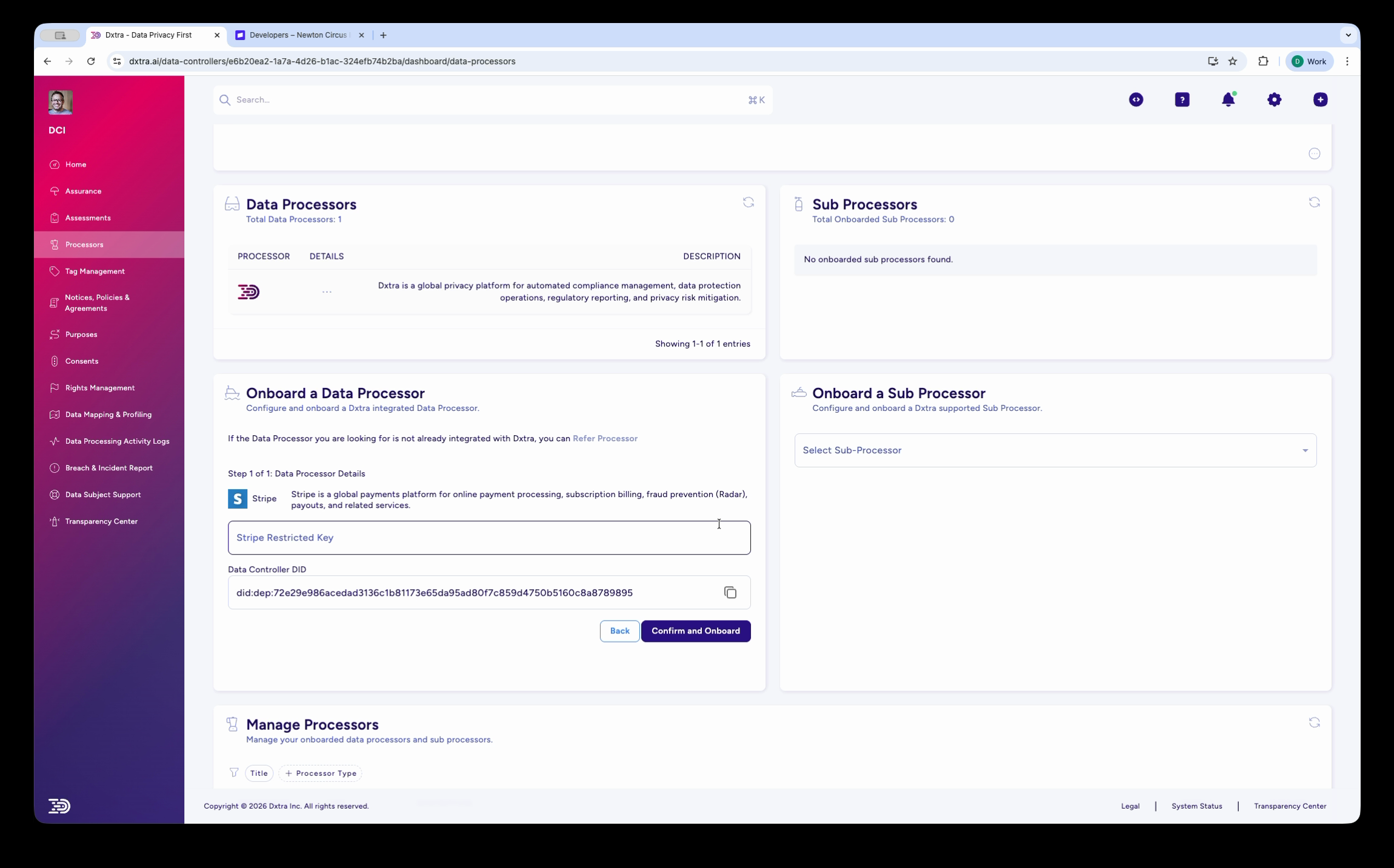
Stripe now appears in your Manage Processors table with an Interconnected badge.
Configure the Stripe webhook
The webhook connection enables real-time event streaming from Stripe to Dxtra. This is how Dxtra tracks payment processing activities and links them to data subjects.
Step 1: Get your Dxtra credentials
- Log in to the Dxtra Dashboard
- Navigate to Developers (or Settings > Developers)
- Copy your Data Controller DID (unique identifier for your organization)
- Copy your DX Key (API key for webhook authentication)
Store these securely — you'll need them in Step 2.
Step 2: Configure Stripe Webhook
In your Stripe Dashboard:
- Navigate to Developers > Webhooks (or Integrate > Webhooks)
- Click Add endpoint button
- Enter the Dxtra webhook URL provided during processor onboarding:
Note
The webhook URL is generated automatically when you onboard Stripe as a processor in the Dxtra dashboard. The token parameter contains an encrypted JWE token that authenticates the webhook. Do not construct this URL manually — copy it from the processor setup page.
- Select Events to send. Choose:
customer.createdcustomer.updatedcustomer.deletedpayment_intent.succeededpayment_intent.payment_failedinvoice.createdinvoice.paidcustomer.subscription.createdcustomer.subscription.updated-
customer.subscription.deleted -
Click Add endpoint to save
Step 3: Verify Webhook Signature (Recommended)
For maximum security, enable webhook signature verification. Stripe automatically verifies the webhook signature with Dxtra using the webhook signing secret.
In your Stripe Dashboard Webhooks section: 1. Find your newly created endpoint 2. Note the Signing secret (starts with whsec_) 3. Stripe will use this to sign all webhook events 4. Dxtra verifies the signature using the standard Stripe SDK
Dxtra Handles Signature Verification
Dxtra automatically verifies Stripe webhook signatures. No additional configuration needed on your part.
Step 4: Test the Webhook
Still in the Stripe Webhooks section:
- Find your endpoint
- Click the ... menu and select Send test event
- Choose customer.created or payment_intent.succeeded for testing
- Click Send test event
Step 5: Verify Integration in Dxtra
Back in the Dxtra Dashboard:
- Navigate to Processing Activity Log or Integrations
- Look for the test event from Stripe (may take 1-2 minutes to appear)
- You should see:
- Event type (e.g.,
stripe:customer.created) - Timestamp
- Data subject created (if customer had email)
- Verify that a new data subject appears in your Data Subjects list
If the test event doesn't appear after 2 minutes, go to Troubleshooting.
Step 6: Deploy to Production
Once verified:
- Return to Stripe Webhooks section
- Your endpoint should now show Events successfully sent (once live events start flowing)
- Stripe will begin sending real payment events to Dxtra
- Monitor your Processing Activity Log to verify events are being received
Test Events Don't Count
The test event in Step 4 is a simulation. Real events only start flowing when actual payments occur in Stripe.
Data processing details
What Data is Sent
When Stripe sends webhook events to Dxtra, the events include:
Customer Events: - Customer ID - Email address - Name - Billing address - Creation and update timestamps
Payment Events: - Customer email - Payment amount and currency - Payment status (succeeded, failed, etc.) - Timestamp
Subscription Events: - Customer email - Subscription status (active, canceled, etc.) - Billing interval (monthly, yearly, etc.) - Timestamp
What Data is NOT Sent
Dxtra does NOT receive or store: - Full credit card numbers - CVV or security codes - Raw card data - Stripe API keys - Subscription pricing (only billing interval)
Data Retention
Dxtra retains webhook event records in the Processing Activity Log according to your organization's data retention policy (configurable in Settings > Compliance Framework).
Authentication
The webhook URL uses a single token parameter for authentication:
URL Parameters: - token={ENCRYPTED_TOKEN} — JWE-encrypted authentication token generated during processor onboarding. Your organization's DID and DX Key are embedded inside the token; they are not passed as separate URL parameters.
Stripe Signature Verification: - Dxtra verifies the Stripe-Signature header using Stripe's standard webhook signature method - This ensures events genuinely come from Stripe, not a malicious actor
Customer data redaction
When a data subject submits an erasure (deletion) request and you process it:
- Delete the data subject in Dxtra (or mark as deleted)
- Dxtra can automatically trigger data redaction in Stripe
- Stripe removes/anonymizes the customer data in your account
- The deletion is logged in Dxtra's audit trail
Retention for Legal Compliance
Stripe must retain some transaction data for PCI DSS and tax compliance. Dxtra works with Stripe's retention policies to handle deletion requests appropriately.
Monitoring
Processing activity log
Monitor incoming Stripe events:
- Navigate to Processing Activity Log in Dxtra
- Filter by Source: stripe to see only Stripe events
- Review event details:
- Event type
- Timestamp
- Data subject created
- Customer email
Alerts and notifications
Configure notifications for Stripe events:
- Navigate to Settings > Communication Preferences
- Enable Data Processor Updates to receive alerts for new processors or events
- Enable Integration Issues to be notified of webhook failures
Manual event verification
To verify events are flowing:
- Create a test charge in Stripe development mode
- Check the Processing Activity Log in Dxtra within 2 minutes
- Verify the event appears with correct customer data
Troubleshooting
Events Not Appearing in Dxtra
Problem: Test webhooks or production events aren't showing in the Processing Activity Log
Check: 1. Webhook URL is correct and includes a valid token parameter (the JWE-encrypted token from processor onboarding) 2. Stripe endpoint shows as Enabled and Active 3. URL doesn't have typos or special character encoding issues 4. Firewall/network allows Stripe to reach Dxtra servers
Solutions: 1. Go to Stripe Webhooks page and verify the endpoint URL 2. Send another test event 3. Wait 2-3 minutes for the event to process 4. Check for any error messages in Stripe's webhook delivery logs 5. Contact support@dxtra.ai if events still don't appear
Stripe Webhook Logs: 1. In Stripe Webhooks section, click your endpoint 2. Scroll to Events section 3. Look for recent events and check their Response status 4. Failed events show HTTP error codes (e.g., 400, 401, 500)
401 Unauthorized Response
Problem: Stripe webhook returns 401 Unauthorized
Causes: - JWE token in webhook URL is invalid or expired - Webhook secret has changed since initial setup
Solutions: 1. Re-run the Stripe onboarding in Dxtra to generate a new webhook URL and re-register the endpoint with Stripe. 2. Send a test event to verify
400 Bad Request Response
Problem: Stripe webhook returns 400 Bad Request
Causes: - Webhook URL is malformed - Query parameters are missing or incorrect
Solutions: 1. Check URL syntax for typos 2. Ensure the token= parameter is present (copied from processor onboarding) 3. URL-encode special characters if needed
Data Subject Not Created
Problem: Webhook event received but no data subject created
Causes: - Webhook event doesn't include customer email - Customer email is empty or invalid - Data subject already exists (duplicate event)
Solutions: 1. Check Stripe webhook event details — does it include customer.email? 2. Verify Stripe customer has valid email in their profile 3. Check if data subject already exists in Dxtra for that email
Webhook Delivery Delays
Problem: Events take 5+ minutes to appear in Dxtra
Cause: Network latency or high event volume
Solutions: 1. Verify webhook is enabled in Stripe 2. Check Stripe's webhook delivery logs for retry attempts 3. Contact support@dxtra.ai if delays persist
Webhook event examples
customer.created
Sent when a new customer is created in Stripe:
{
  "id": "evt_1234567890",
  "object": "event",
  "type": "customer.created",
  "data": {
    "object": {
      "id": "cus_123456",
      "email": "customer@example.com",
      "name": "John Smith",
      "address": {
        "line1": "123 Main St",
        "city": "San Francisco",
        "state": "CA",
        "country": "US",
        "postal_code": "94105"
      },
      "created": 1234567890
    }
  }
}
payment_intent.succeeded
Sent when a payment succeeds:
{
  "id": "evt_1234567891",
  "object": "event",
  "type": "payment_intent.succeeded",
  "data": {
    "object": {
      "id": "pi_123456",
      "customer": "cus_123456",
      "amount": 5000,
      "currency": "usd",
      "status": "succeeded",
      "created": 1234567891
    }
  }
}
Compliance documentation
When using Stripe with Dxtra, ensure you have:
- Stripe Terms of Service reviewed by legal team
- Data Processing Addendum (DPA) executed with Stripe
- Stripe documented in your Record of Processing Activities (RoPA)
- Data retention policy documented (in Dxtra Settings)
- Stripe webhook data minimization reviewed
- Customer privacy notice updated to mention Stripe payment processing
Next steps
- Verify webhook events are flowing (Step 5)
- Review customer data in the Processing Activity Log
- Update your Data Processing documentation to include Stripe
- Configure data subject rights workflow
- Test a data subject access request (use test customer in Stripe dev mode)
Related documentation
- Payment Integrations Overview — Other payment processors
- Webhook Integrations — Webhook reference
- Processing Activity Log — View tracked data
- Data Subject Rights — Handle customer requests
- Go-Live Checklist — Pre-launch verification
Support
Questions or issues? - Check the Troubleshooting section above - Review FAQ - Contact support@dxtra.ai with your webhook URL and DID
Ready to integrate? Start with adding Stripe as a data processor, then configure the webhook.