Mailchimp integration
Beta — Integration details
This integration's setup steps are based on standard Mailchimp API patterns. Specific API key generation, list management, and subscriber data access will be verified against the live Dxtra application. If you encounter differences, please report an issue.
Connect your Mailchimp account to Dxtra to automatically manage email preferences, sync list subscriptions, and handle data subject requests for your mailing lists. Mailchimp Marketing is available as a pre-built integration in the Dxtra processor dropdown.
What you can do
- Access Requests — Export subscriber data including email history, list memberships, and engagement metrics
- Deletion Requests — Remove subscribers from all Mailchimp lists and delete their data
- Consent Management — Sync unsubscribe preferences in real-time across all lists
- List Management — Manage subscribers across multiple email lists and segments
- Compliance — Meet CAN-SPAM, GDPR, and CASL email marketing requirements
Prerequisites
- Active Mailchimp account (Standard plan or higher)
- Dxtra workspace with admin access
- Mailchimp account admin access to generate API key
Setup instructions
Step 1: Go to Processors Page
In your Dxtra dashboard:
- Navigate to Integrations → Processors (or Manage Processors)
- Click Select Processor dropdown or + Add Processor
- Find Mailchimp Marketing in the list
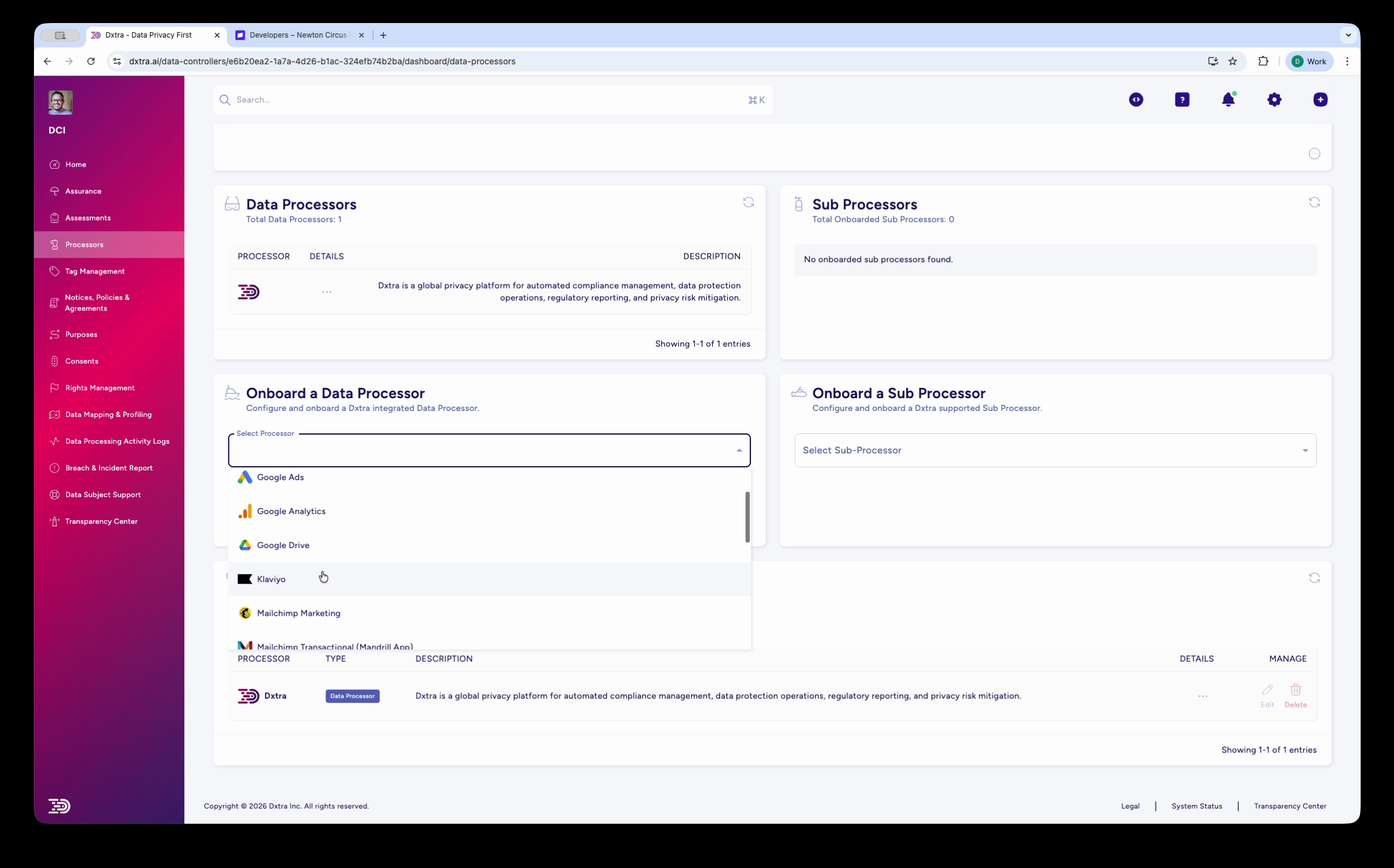
Step 2: Enter Mailchimp API Key
When you select Mailchimp Marketing, the onboarding wizard opens:
Data Processor Details: - Processor Name: Mailchimp Marketing (auto-filled) - Processor Category: Email Marketing (auto-filled)
API Authentication: 1. Generate an API key in Mailchimp: - Log in to Mailchimp - Go to Account → Extras → API Keys - Click Create A Key - Copy the generated API key 2. Paste the API key into the Dxtra form 3. Click Verify to confirm the connection
Step 3: Confirm Data Controller DID
Dxtra displays your Data Controller DID (your unique organization identifier). This is used in webhooks and processing activity logs.
- Review the DID (example:
f47ac10b-58cc-4372-a567-0e02b2c3d479) - Keep this for reference in your compliance documentation
Step 4: Complete Onboarding
- Review the connection details
- Click Confirm and Onboard
- Mailchimp Marketing now appears in your Manage Processors table with an "Interconnected" badge
Data covered
| Data Category | Details |
|---|---|
| Subscribers | Email address, name (first/last), subscription date, status |
| Lists | List membership, segment membership, subscription lists |
| Campaigns | Campaign names, send dates, performance metrics (opens, clicks) |
| Automations | Workflow memberships, automation trigger status, enrollment date |
| Tags | Custom tags applied to subscribers, tag assignment date |
| Engagement | Open count, click count, bounce status (hard/soft), complaint status |
Handling data subject requests
Access Requests
When a subscriber requests their data:
- In Dxtra, create a new Data Subject Access Request
- Enter the subscriber's email address
- Dxtra retrieves their data from Mailchimp:
- All list memberships and subscription status
- Campaign engagement (opens, clicks, forwards)
- Automation enrollments and interactions
- Applied tags and segments
- Historical activity
- Generate an export file
- Deliver to the subscriber within your compliance timeline (typically one month for GDPR)
Unsubscribe Management
Mailchimp syncs unsubscribe preferences in real-time:
- Subscriber unsubscribes from an email in Mailchimp
- Preference change automatically syncs to Dxtra
- Dxtra removes them from marketing lists and automations
- Preference is updated in your Processing Activity Log
Deletion Requests
When a subscriber requests deletion:
- In Dxtra, create a Deletion Request
- Verify subscriber identity
- Choose what to delete:
- Delete from all Mailchimp lists
- Delete subscriber profile
- Delete engagement history (opens, clicks, etc.)
- Click Execute Deletion
- Dxtra removes the subscriber from Mailchimp
- Send confirmation to the subscriber
Monitoring the integration
Processing Activity Log
Track all Mailchimp activity:
- Go to Processing Activity Log in Dxtra
- Filter by Source: Mailchimp Marketing
- View all subscriber events, list updates, and synchronizations
- Each event shows timestamp and affected subscriber
Connection Status
Check the integration health:
- Go to Manage Processors
- Find Mailchimp Marketing in the table
- Verify the badge shows Interconnected (green)
- If status shows error, check:
- API key is current and has correct permissions
- Mailchimp account is active
- Network connectivity allows Dxtra to reach Mailchimp
Troubleshooting
Connection Failed
Problem: "Failed to authenticate with Mailchimp" error
Check: 1. API key is correct and was copied in full 2. API key hasn't been revoked or rotated 3. Mailchimp account is active
Solution: 1. Generate a new API key in Mailchimp 2. Update the key in Dxtra Processor settings 3. Click Verify to re-test
Missing Subscriber Data
Problem: Subscriber exists in Mailchimp but doesn't appear in Dxtra
Check: 1. Email address is spelled exactly as in Mailchimp 2. Subscriber is in a synced list 3. Integration shows Interconnected status
Solution: 1. Verify subscriber email matches exactly in Mailchimp 2. Try searching by a different identifier 3. Re-test the API connection
Sync Not Working
Problem: Changes in Mailchimp don't appear in Dxtra
Check: 1. Integration status shows Interconnected 2. API key permissions include list and subscriber data 3. Mailchimp API is operational
Solution: 1. Manually trigger a re-sync from Processor settings 2. Wait 5-10 minutes for changes to propagate 3. Check Mailchimp API status page 4. Contact support@dxtra.ai if issue persists
Deletion Failed
Problem: Deletion request shows as failed
Check: 1. Subscriber still exists in Mailchimp 2. Mailchimp account has admin permissions 3. API key includes deletion permissions
Solution: 1. Verify subscriber exists in Mailchimp 2. Confirm Dxtra API key has "subscribers:write" permission 3. Try deletion again from Processor settings 4. Contact support@dxtra.ai if persistent
Best practices
- Test with Sample Subscriber — Verify data retrieval and deletion with a test subscriber first
- Document Your Process — Train your team on handling access and deletion requests
- Regular Audits — Review list cleanliness and subscription status monthly
- Announce Capabilities — Let subscribers know you can fulfill data requests quickly
- Monitor Activity Log — Regularly check the Processing Activity Log for sync status
Security and compliance
- Data Encryption — Mailchimp API data encrypted in transit (TLS 1.2+)
- Key Storage — API keys encrypted at rest in Dxtra
- Access Control — Only admins with "Privacy & Compliance" role can access subscriber data
- Audit Trail — All access to subscriber data is logged and auditable
- No Data Resale — Dxtra never sells, shares, or uses Mailchimp data for marketing
Related documentation
- Email Marketing Integrations — Overview of email platform integrations
- Klaviyo Integration — E-commerce email marketing platform
- Data Subject Rights — Complete DSR handling guide
- Processing Activity Log — Monitor integrations
Support
Having trouble? Get help:
- Check the Troubleshooting section above
- Review the FAQ
- Contact support@dxtra.ai with your processor details
Next: Explore Klaviyo integration for e-commerce email marketing.