Salesforce integration
Beta — Integration details
This integration uses Salesforce Change Data Capture (CDC) to receive real-time events when records change. The setup process involves configuring Salesforce to push CDC events (e.g., ContactChangeEvent, AccountChangeEvent) to Dxtra's webhook endpoint. Webhook authentication uses Organization ID + HMAC-SHA256 validation. Specific setup steps will be verified against the live application.
Connect your Salesforce org to Dxtra to receive real-time change notifications via Change Data Capture, track data subject records, and maintain compliance audits across your customer data landscape.
What you can do
- Event tracking — Receive real-time inbound CDC events for Contact, Account, Lead, Case, and User record changes.
- Erasure requests — Anonymize contact PII in Salesforce (name, email, phone, address replaced with redacted values) with audit trail logging.
- Data discovery — Map all customer data across Leads, Contacts, Accounts, and custom objects.
- Enterprise compliance — Support multi-org deployments and complex field-level security.
Prerequisites
- Salesforce org (Professional, Enterprise, or Unlimited edition)
- Salesforce admin access to create a connected app
- Dxtra workspace with admin permissions
- Lightning Experience enabled (recommended)
Setup
Add Salesforce as a processor
- In Dxtra, go to Integrations → Processors.
- Click Select Processor and choose Salesforce from the dropdown.
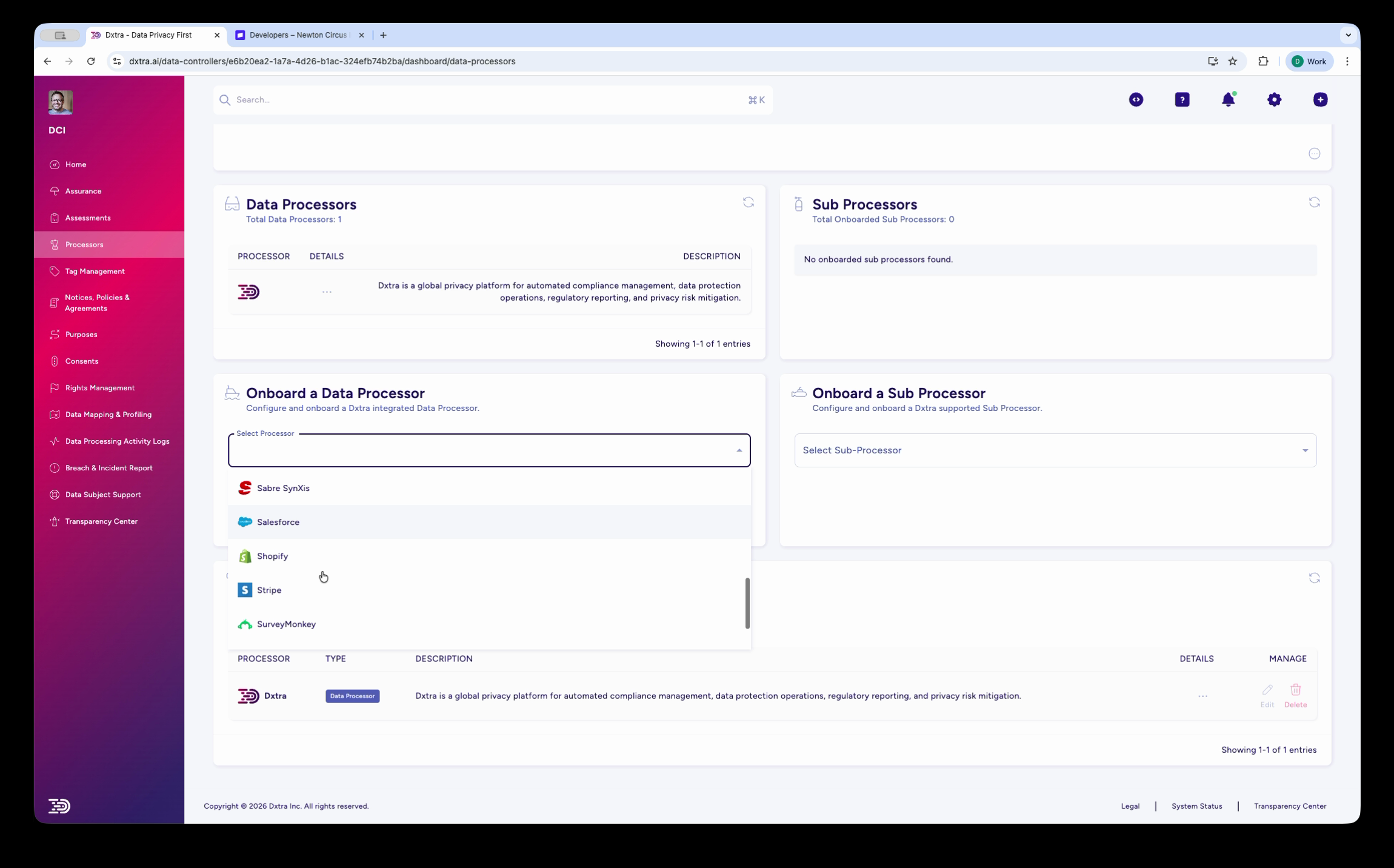
- Follow the onboarding wizard through each step.
- When prompted, you'll authenticate via Salesforce OAuth. The setup wizard requires you to enter your Connected App Consumer Key and Consumer Secret, which Dxtra uses server-side to complete the OAuth token exchange.
- Approve the connection in Salesforce and Dxtra displays your Data Controller DID.
- Click Onboard to complete setup.
Create a connected app in Salesforce
- Log in to Salesforce and go to Setup → Apps → App Manager.
- Click New Connected App.
- Enter:
- Connected App Name: Dxtra Privacy Compliance
- API Name: Dxtra_Privacy_Compliance
- Contact Email: your-email@company.com
- Under OAuth Settings, enable OAuth and add:
- Callback URL:
https://app.dxtra.ai/data-controllers/oauth/salesforce - Selected OAuth Scopes: Access and manage your data (
api), Perform requests at any time (refresh_token), Access data while offline (offline_access) - Click Save and wait 2–10 minutes for provisioning.
- Copy your Consumer Key and Consumer Secret for the Dxtra onboarding wizard.
Verify the connection
Once onboarded, Salesforce appears in Manage Processors with an "Interconnected" badge. Test by creating a data subject request for a contact—Dxtra should retrieve their full profile including related accounts, opportunities, and cases.
Data covered
| Object | Fields |
|---|---|
| Leads | First/last name, email, phone, company, title, status, rating, custom fields |
| Contacts | Name, email, phone, mailing address, title, account association, custom fields |
| Accounts | Name, industry, revenue, billing/shipping address, owner, website, custom fields |
| Cases | Number, subject, description, status, priority, origin, associated contact/account, comments |
How DSRR requests work
When you submit an access request in Dxtra:
- Dxtra queries Salesforce for the lead or contact by email or ID.
- For erasure requests, Dxtra finds all Contact records matching the email address and anonymizes their PII fields (name, email, phone, address) with an audit trail entry logged.
Troubleshooting
OAuth connection fails
Verify the Callback URL matches exactly: https://app.dxtra.ai/data-controllers/oauth/salesforce. Confirm your org isn't blocking the domain. Ensure the connected app status is "Approved" in Salesforce.
Missing records in exports
Check field-level security—Dxtra respects FLS and only returns fields your service account can access. Verify the contact exists and isn't archived. Confirm the account you're querying has associated records.
Deletion blocked or slow
Large deletions respect Salesforce API rate limits (depends on your license). Verify records aren't locked by workflows or validation rules. Consider deleting during off-hours for large datasets.
Best practices
- Use a service account — Create a dedicated Salesforce user with admin permissions for Dxtra.
- Test in sandbox first — Validate setup before connecting to production.
- Monitor the dashboard — Regularly check Manage Processors for sync errors or auth issues.
- Document field mapping — Log which fields you sync for audit purposes.
- Keep privacy notices current — Inform customers that you use Dxtra for compliance.