Run a DPIA
A Data Protection Impact Assessment (DPIA) is mandatory under GDPR Article 35 whenever you process personal data in ways that could present high risks to individuals. A DPIA documents what you're processing, why, who it affects, what could go wrong, and how you'll protect people.
When a DPIA is required
You must conduct a DPIA before you start processing that involves:
- Automated decision-making (algorithms that make choices about people without human review)
- Systematic monitoring or profiling at scale
- Processing of special categories of data (health, biometric, genetic, racial/ethnic origin, political views, union membership, sexual orientation)
- Large-scale processing of personal data
- New technologies you haven't used before
- Processing that could restrict people's rights or freedoms
If you're unsure whether you need a DPIA, err on the side of conducting one. Better to have documented your thinking than to face a regulator's questions later.
How Dxtra generates your DPIA
When you answer Dxtra's governance questionnaire, the AI engine generates a complete DPIA document tailored to your processing activities. The AI pulls data from your organization profile and assessment answers to populate tables, sections, and risk evaluations automatically.
The generated document includes all 12 standard DPIA sections with pre-filled tables and safeguard recommendations. You then review this in the editor, refine the content where needed, and approve it to go live.
DPIA structure: the 12 sections
Every DPIA generated by Dxtra contains these sections:
1. Overview
Your organization name, address, DPO contact, email, the date of the assessment, version number, and the purpose of the processing activity under review.
2. Description of the Processing
Explains the context and purpose: what you're doing, why you're doing it, and how it fits into your business operations.
3. Types of Personal Data Processed
A table listing each category of data (account identifiers, email addresses, phone numbers, financial data like bank details or payment info, technical/navigational data like IP addresses and referral URLs) with its source and whether it includes special or sensitive categories.
4. Data Subjects
Who are the people whose data you're processing? Customers, employees, job applicants, website visitors, etc.
5. Third-Party Transfers
If you share personal data with other organizations, this section documents them. For each recipient, note their role (processor, joint controller, or third party), what data they receive, and the legal basis for the transfer.
6. Data Subject Rights
Documents how you respect individuals' rights under GDPR and other laws:
- Access (right to know what data you hold)
- Rectification (right to correct inaccurate data)
- Erasure (right to be forgotten)
- Portability (right to export their data)
- Restriction (right to stop processing)
- Objection (right to opt out)
- Automated decision-making rights (right not to be subject to solely automated decisions)
- CCPA rights (if you process data of California residents)
7. International Data Transfers
If you transfer data outside your region, describe the transfer mechanism (standard contractual clauses, adequacy decision, binding corporate rules, etc.) and any additional safeguards required by law.
8. Organizational Policies & Procedures
Lists the policies that govern your data protection practices: Data Protection Policy, Information Security Policy, and Data Subject Rights Request (DSRR) procedures.
9. Governance & Accountability
A table of key roles and the individuals who hold them: DPO, Chief Information Security Officer (CISO), Engineering Lead, and Customer Support lead.
10. Consultation & Review
Documents who you consulted during the assessment (implementation team, legal, business stakeholders, etc.) and when. Also records when the DPO reviewed the assessment and their analysis.
11. Ongoing Review
Notes that the assessment is reviewed annually and when it was last refreshed.
12. Approval & Sign-Off
A table for approvers (DPO, data controller, business owner) and their sign-off date. Includes a status badge and action items checklist so you can track what still needs to be done before publishing.
Review and edit your DPIA
Navigate to Governance → Assessments, find your DPIA, and click Edit.
You'll see a split-view editor:
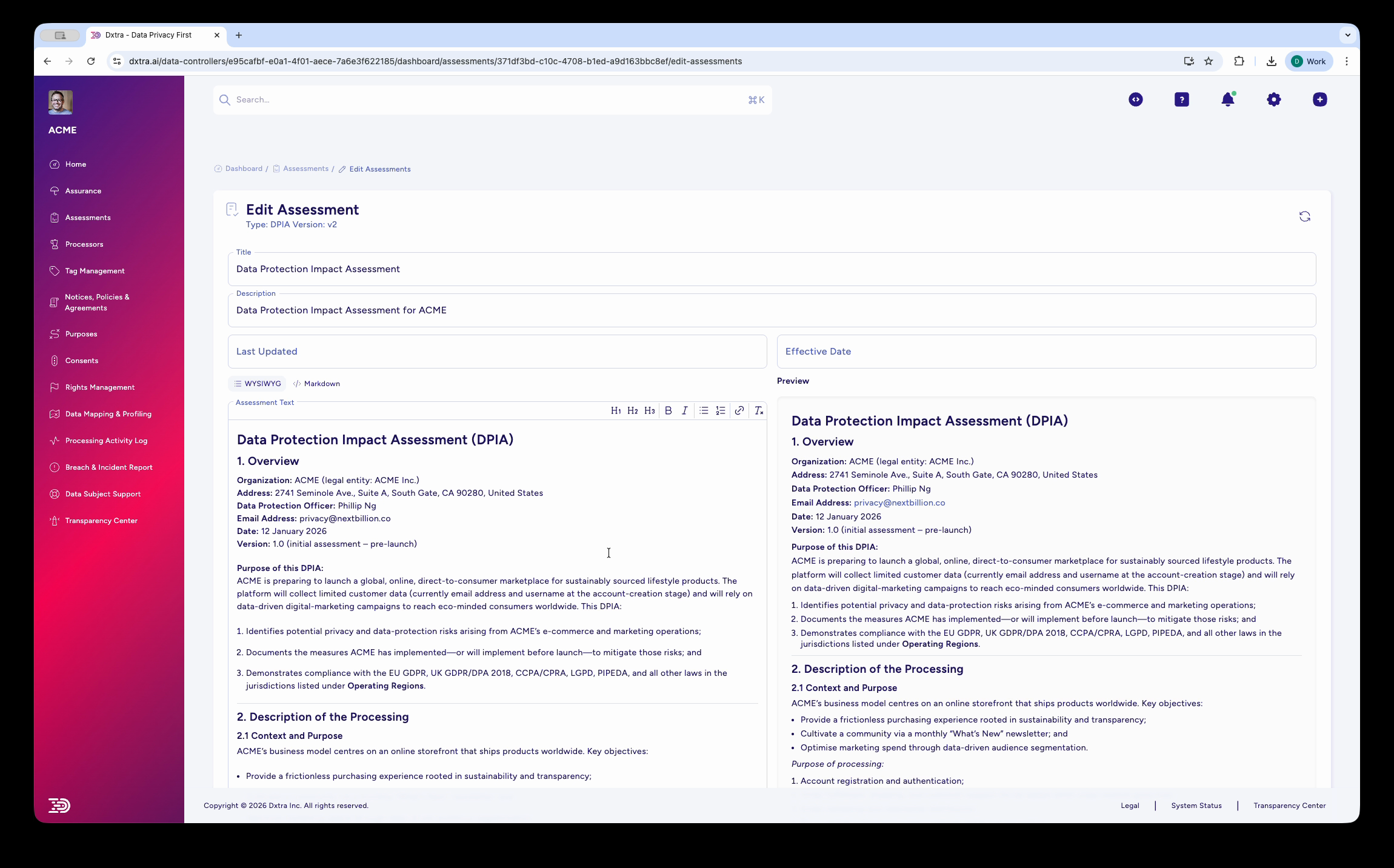
Left panel (WYSIWYG editor): Rich text editor with formatting toolbar (bold, italic, lists, tables, links). Edit any section. Changes save automatically to draft.
Right panel (Live preview): Read-only preview of how your DPIA will look when exported or shared. Refreshes in real time as you edit.
Tabs: Choose between WYSIWYG (for editing) and Processors (for managing third-party processors separately, if applicable).
What you can edit
- Text in any section (refine wording, add context, clarify details)
- Table rows (update data categories, add recipients, adjust transfer mechanisms)
- Dates (last updated, effective date)
- Any other fields the AI populated
Editing tips
- Change fields that no longer match your actual processing
- Add notes explaining decisions (especially for high-risk activities)
- If the AI generated a risk, confirm it's accurate or refute it with your safeguards
- Link to policies mentioned (Data Protection Policy, Security Policy) if you want to make them accessible to reviewers
Approve your DPIA
When you're satisfied with the content, you have three choices:
Save to Draft: Save your edits but don't publish yet. The assessment stays in Draft status. Use this if you need feedback from others before finalizing.
Save and Approve: Finalize the DPIA. It moves to LIVE status and becomes your official documented evidence for regulators and auditors. This is the step that publishes the assessment.
Reject: Discard this version (rarely used; only if the AI generated something so inaccurate you'd rather start over).
Most of the time you'll use Save and Approve once you've reviewed and refined the content.
Action items and status
Before approving, you'll see an Approval & Sign-Off section with:
- Roles that must approve (DPO, Data Controller, Business Owner)
- A status badge showing what stage the assessment is in (Draft, Under Review, Approved)
- Action items checklist: tasks that must be completed before publishing (e.g., "DPO sign-off obtained," "Risk mitigation plan implemented," "Stakeholder consultation complete")
Tick off items as they're completed. You can publish without all items checked, but unchecked items act as a reminder of follow-up work.
Risk Assessment section
The DPIA includes a Risk Assessment table showing:
| Aspect | Rating |
|---|---|
| Likelihood (of a risk event occurring) | Low / Medium / High |
| Impact (severity if a risk event occurs) | Low / Medium / High |
| Overall risk | Low / Medium / High |
Review these ratings. If Dxtra rated something as High and you disagree, edit the justification. If you agree, ensure you've documented your mitigation (technical controls, process changes, insurance, etc.) in the assessment.
Data Retention section
Shows how long you keep different categories of personal data:
| Data Category | Retention Period | Justification |
|---|---|---|
| Account Identifiers | 7 years (post-contract) | Legal requirement |
| Marketing consent records | Lifetime | Consent proof |
| Server logs | 90 days | Security auditing |
Check retention periods align with your actual practices. If the AI got it wrong, update it.
Export and share your DPIA
Once your DPIA is LIVE, you can export it as a PDF:
- Open the DPIA (Governance → Assessments → click your DPIA title)
- Click Export to PDF
- Your PDF downloads, formatted with headings, tables, risk ratings, and your organization's branding (if configured)
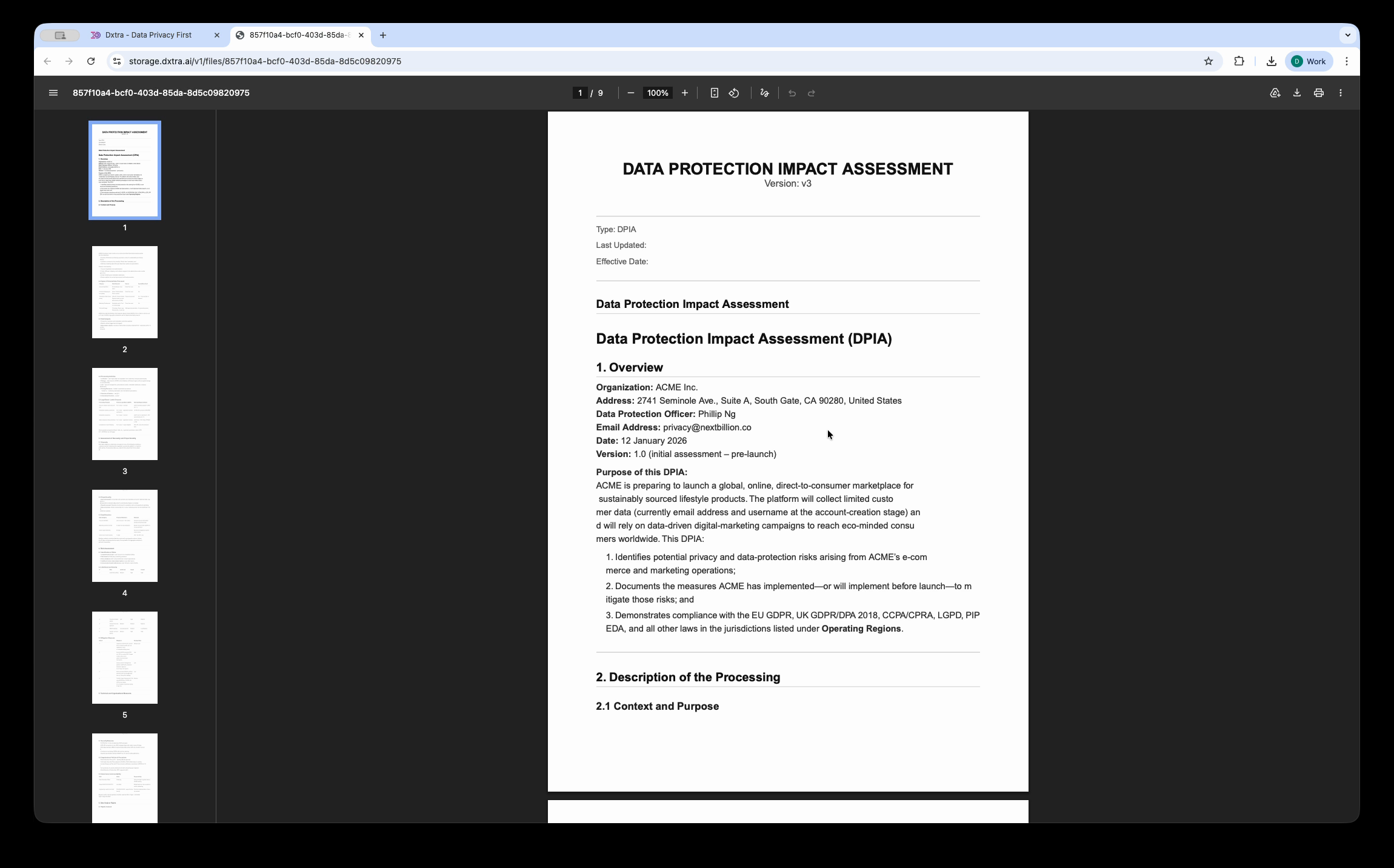
Share the PDF link with:
- Regulators or supervisory authorities (if requested)
- External auditors
- Your board or leadership
- Processors or other controllers you work with
When to regenerate a DPIA
Regenerate when:
- Your processing activity changes materially (new data types, new third parties, new purposes)
- You've implemented new safeguards and want to refresh risk ratings
- You want to update the assessment with fresh questionnaire answers
To regenerate, click Regenerate on the assessment. A new version is created in Draft status with the same version number incremented. Your old version stays in your history.
Each plan allows a monthly regeneration quota (Start: 1, Growth: 2, Scale: 3, Enterprise: 10+). Once you regenerate, you follow the review and approval workflow again.
Related guidance
- Assessments overview — Understand all six assessment types Dxtra generates.
- Governance overview — See how assessments fit into your compliance program.