Tag Manager
Tag Manager is a server-side tag management application that sits between your digital property and external platforms. It captures identifiers and behavioral signals via a lightweight script tag in your page's <head>, processes and stores them before any data leaves your infrastructure, and forwards events only to authorized, compliant third-party service providers (Google, Meta, etc.). Errors and processing activity are automatically logged in the Processing Activity Log and the Transparency Center.
This architecture gives you complete control over what data is collected, where it goes, and whether the user has consented — without relying on client-side cookies or cross-site tracking.
How it works
Tag Manager operates in three stages:
-
Capture — A lightweight JavaScript snippet in your page's
<head>collects page views, events, and contextual signals. The script runs on your domain, maintaining a first-party relationship with the visitor. -
Process — Events are sent to the Tag Manager edge (
tagmanager-edge.dxtra.ai) where consent rules are enforced, identifiers are resolved, and data is validated before it leaves your control. -
Forward — Only data that passes consent checks is forwarded via secure API calls to authorized third-party destinations. Non-consented events are blocked and never transmitted.
Tag Management in the Dxtra dashboard
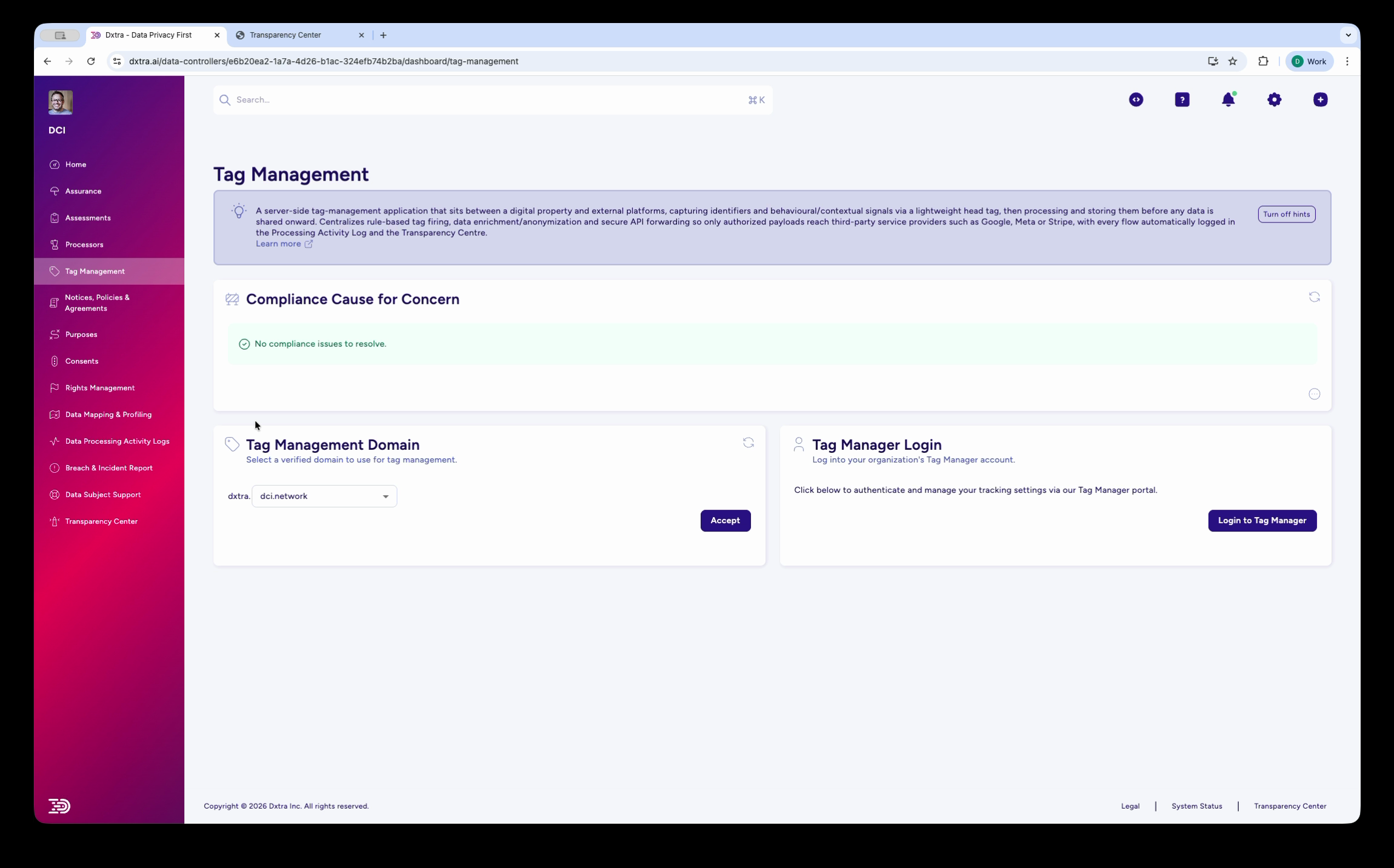
The Tag Management page in the Dxtra dashboard (app.dxtra.ai) is your starting point for connecting your domain and accessing the Tag Manager application.
The page has two main sections:
Tag Management Domain — Select a verified domain from the dropdown to use for tag management. Click Activate to associate the domain with your Tag Manager configuration. You must have at least one verified domain before you can activate Tag Manager.
Tag Manager Login — Click Login to Tag Manager to authenticate and access the Tag Manager application at tagmanager.dxtra.ai, where you configure applications, view analytics, and get your installation code.
The Tag Manager application
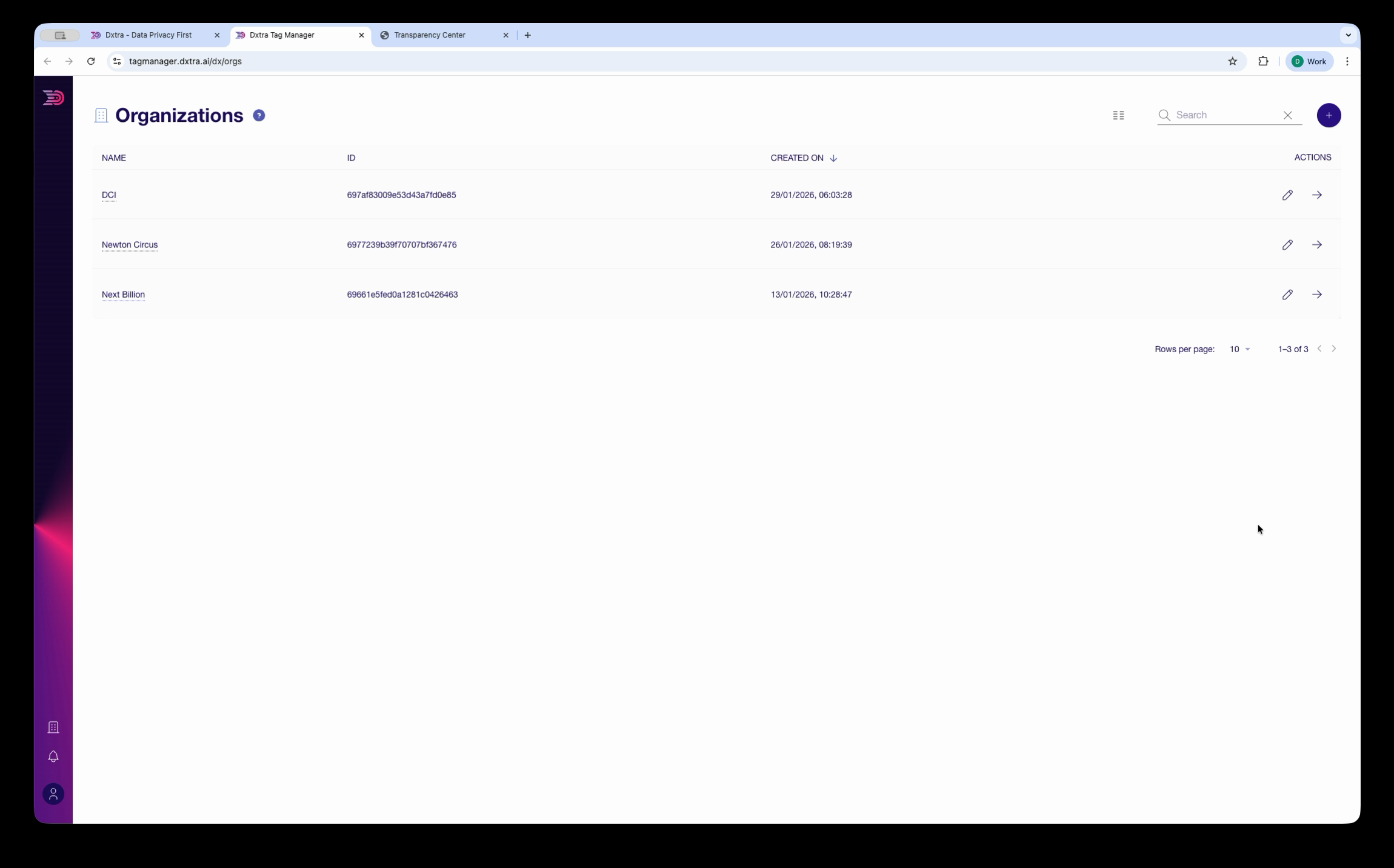
The Tag Manager application lives at tagmanager.dxtra.ai and is where you manage your tracking configuration. It is organized around three levels:
Organizations — Your top-level entity. Each Dxtra Data Controller maps to an organization in Tag Manager. The Organizations page lists all organizations you have access to, with their IDs and creation dates.
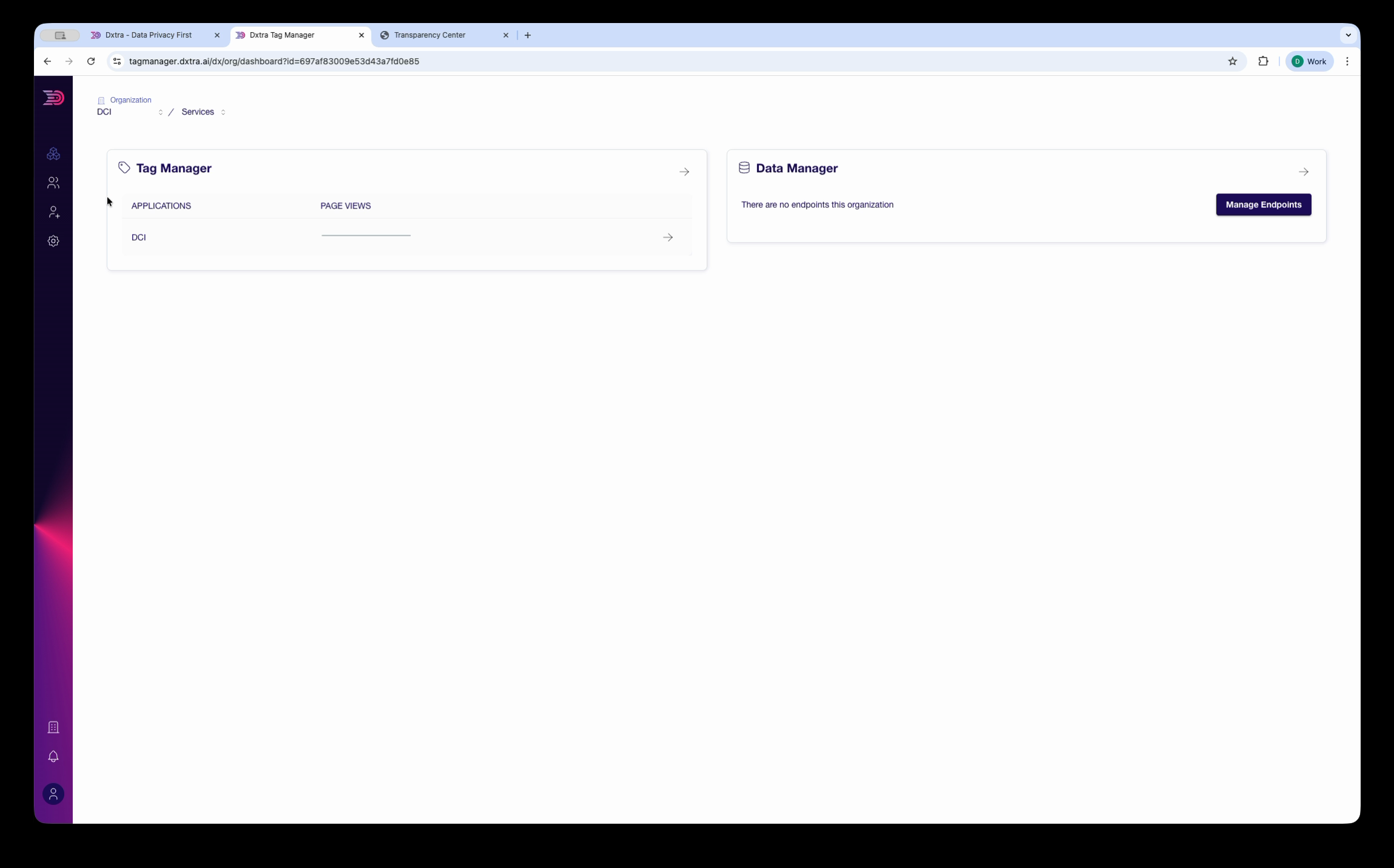
Services — Each organization has two service areas:
- Tag Manager — Your tracking applications and their page view metrics. Expand an application to view its analytics and configuration.
- Data Manager — Endpoint management for data ingestion. Configure endpoints with the Manage Endpoints button.
Applications — Within Tag Manager, each application represents a website or digital property you are tracking. The application detail view provides tabs for Metrics, Applications, and Analytics, plus the tag installation code.
Key capabilities
Server-side processing — Events are processed on the server, not in the browser. This eliminates many privacy risks associated with client-side tracking and gives you full control over data before it reaches external platforms.
Consent enforcement — Consent rules are enforced at the server level. Tag Manager checks the visitor's consent status before forwarding any data to third-party destinations. Non-essential tracking is automatically blocked when consent has not been given. See consent enforcement for configuration details.
First-party data collection — The tracking script runs on your domain, maintaining a first-party relationship with visitors. No third-party cookies are set, and no cross-site tracking occurs by default.
Privacy-first analytics — Tag Manager provides page view counts, unique event metrics, and session analytics without requiring persistent browser identifiers. You can use authenticated user IDs from your login system for richer analytics while maintaining privacy compliance.
Automatic logging — All tag processing activity is logged in the Processing Activity Log, creating an audit trail of what data was collected, what consent was in place, and where data was forwarded.
Privacy characteristics
Tag Manager is designed for compliance with GDPR, CCPA, LGPD, PECR, and other privacy regulations:
- No cookies by default — The tracking script does not set cookies unless explicitly configured to do so
- No cross-site tracking — Data stays within your first-party domain context
- Consent-gated forwarding — Third-party destinations only receive data when the visitor has given appropriate consent
- Data minimization — Collect only the events and properties you need; nothing is collected automatically beyond the configured events
- Server-side control — You decide what data is processed and where it goes, with full visibility in the Processing Activity Log
Getting started
- Install Tag Manager — Verify your domain, get the script tag, and add it to your site
- Configure consent enforcement — Set up consent categories and map them to your tracking events
- Set up event tracking — Define the events and properties you want to capture
Reference
- JavaScript API reference — Complete reference for the client-side
dxtra()function, script attributes, consent events, debug mode, and platform-specific examples (Next.js, React, WordPress, Shopify) - Tag configuration — Create and manage tags, firing rules, action groups, and distributions in the Tag Manager application
Related
- Consent management — Configure consent categories and legal basis
- Processing activity logs — Audit trail for tag processing activity
- Transparency Center — Where consent preferences are managed by data subjects
- Data mapping and PII scanning — Discover personal data across your systems
Next: Install Tag Manager — verify your domain and add the tracking script.