Review PII scan findings
After Dxtra scans files from your connected processors, the results appear on the Data Mapping & Profiling page. This guide walks you through interpreting scan results, validating detections, and using findings to support your compliance activities.
Understanding the results table
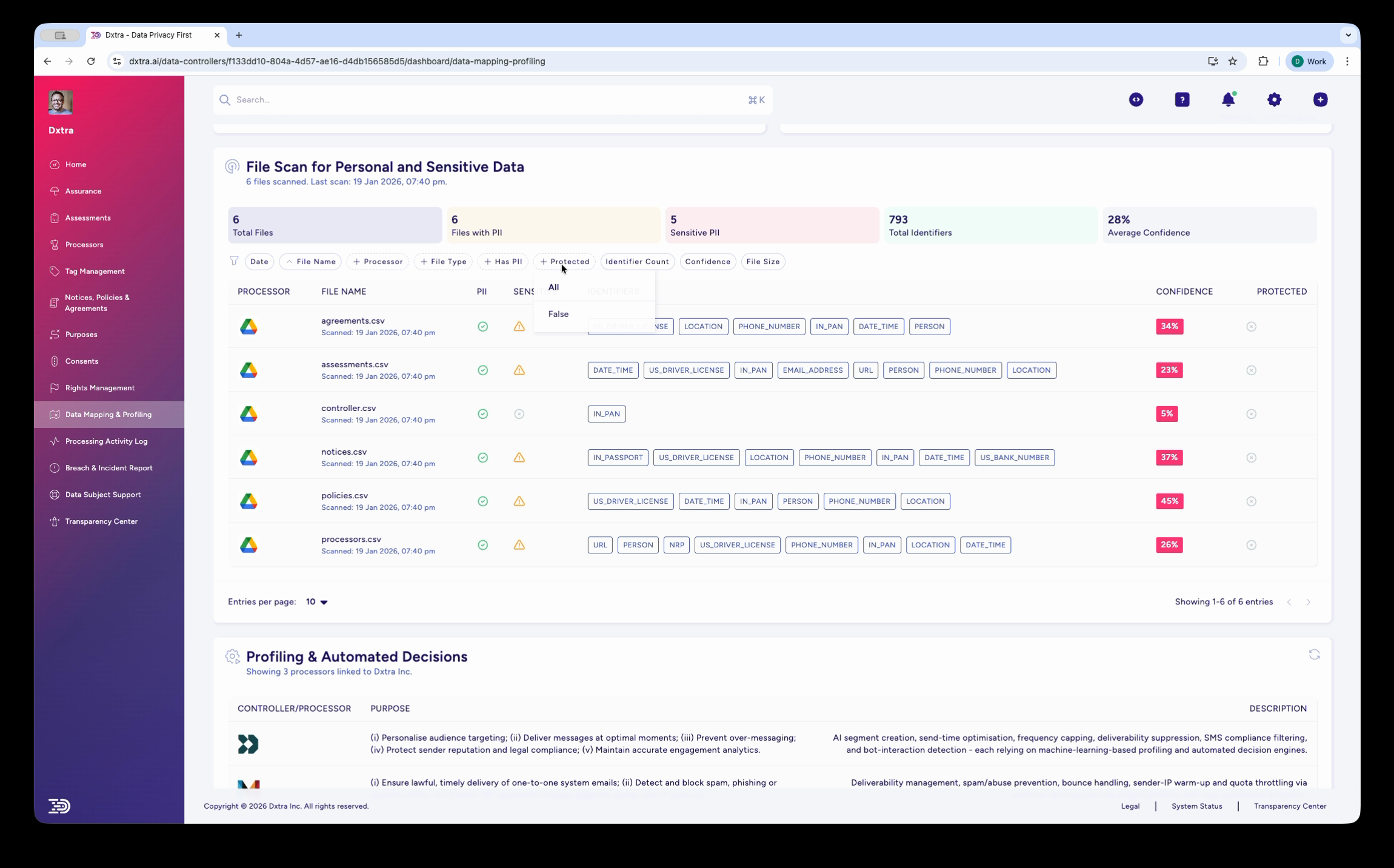
Each row in the File Scan for Personal and Special Category Data table represents one scanned file. The key columns are:
Identifiers — Color-coded badges showing every PII type detected in the file. Common identifiers include FIRST_NAME, LAST_NAME, EMAIL, PHONE_NUMBER, US_DRIVERS_LICENSE, LOCATION, IP_ADDRESS, and DATE. A file may have many identifier badges if it contains multiple types of personal data.
Confidence — A percentage score indicating how certain the detection is. Higher confidence means the scanning engine is more sure the detected data is genuine PII.
Protected — Whether the file has protection measures (encryption, access controls) in place.
Interpreting confidence scores
Confidence scores help you prioritize your review:
High confidence (80–100%) — The scanning engine is confident these are genuine PII detections. These findings rarely need manual validation. Focus remediation efforts here first.
Medium confidence (60–79%) — Likely PII but the engine detected some ambiguity. Common with data that follows PII patterns but could be something else (e.g. a product code that looks like a phone number). Spot-check a sample of medium-confidence findings.
Low confidence (0–59%) — The engine flagged potential PII but is uncertain. These may be false positives. Review a sample and adjust your expectations accordingly. Low average confidence across an entire file may indicate the file contains structured data (like codes or reference numbers) rather than personal data.
Tip
The Average Confidence stat at the top of the page gives you a quick sense of overall detection quality. If it is very low, you may be scanning files that contain little actual personal data — which is useful information in itself.
Reviewing files by priority
Use the filter tabs to focus your review:
High-risk files first
-
Filter by Sensitive PII to see files containing sensitive categories (medical, biometric, racial/ethnic data). These require the strongest protection under GDPR Article 9 and similar provisions.
-
Filter by Confidence (high) to focus on confirmed detections that need immediate attention.
-
Filter by Protected (unprotected) to find files containing PII that do not yet have protection measures.
By processor
Filter by Processor to review findings from one connected system at a time. This is useful when you need to assess the data exposure of a specific service (e.g. reviewing all files from Google Drive).
By file type
Filter by File Type to focus on specific formats. CSV and XLSX files often contain the densest personal data (customer lists, export files). PDFs and images may contain identity documents or scanned contracts.
Using findings for compliance
Data subject access requests
When you receive a data subject access request, scan results help you locate where that person's data exists across your connected processors. Search the file scan results by the data subject's identifiers (name, email) to identify which files contain their information.
Impact assessments
Scan results feed directly into Data Protection Impact Assessments. The identifiers detected, data categories, and file locations provide the factual basis for the "Types of Personal Data Processed" section of a DPIA.
Processing activity records
The scan results contribute to your Processing Activity Log, helping you maintain accurate GDPR Article 30 records of what personal data you process, where it is stored, and what categories it falls into.
Data minimization
Scan results may reveal files containing personal data you no longer need. Use findings to identify data that should be deleted, anonymized, or archived as part of your data minimization strategy.
Profiling & Automated Decisions
Below the file scan results, the Profiling & Automated Decisions section documents how your organization uses personal data for profiling and automated decision-making.
Each entry shows:
- Controller/Processor — Who performs the profiling
- Purpose — The business purpose (e.g. audience targeting, spam prevention, engagement analytics)
- Description — A detailed explanation of the processing activity
This section is generated from your setup questionnaire answers and processor configurations. Review it to ensure accuracy, as GDPR Article 22 requires you to inform data subjects about automated decision-making that significantly affects them.
Taking action on findings
After reviewing scan results, consider these actions:
Protect unprotected files — If files containing PII are not protected, apply encryption, access controls, or move them to a more secure location within your processor.
Delete unnecessary data — Files containing PII that you no longer need should be deleted or anonymized. This supports the data minimization principle.
Update your data map — Use scan findings to keep your records of processing activities current. New files or new identifier types may require updates to your processing records.
Inform your assessments — If scan results reveal data processing you had not documented in your impact assessments, update the relevant DPIA or vendor risk assessment.
Re-scan after changes — After making changes (deleting files, applying protection, moving data), trigger a re-scan to verify the changes are reflected in the results.
Related
- PII scanning overview — How scanning and data mapping work
- Scan files — Connect processors and run scans
- Assessments — Use scan results in impact assessments
- Data subject rights management — Locate data for access and erasure requests
- Processing activity logs — Audit trail for data processing
Not legal advice
AI-generated content does not constitute legal advice. Consult a qualified legal professional for advice specific to your jurisdiction and business context.