PII scanning and data mapping
Dxtra scans files from your connected processors to detect personal and sensitive data automatically. The Data Mapping & Profiling page shows you exactly what personal information exists in your files, which identifiers were found, how confident the detection is, and whether the data is protected.
This gives you a complete picture of your data landscape — essential for responding to data subject requests, conducting assessments, and demonstrating compliance.
The Data Mapping & Profiling page
Navigate to Data Mapping & Profiling in the left sidebar of the Dxtra dashboard. The page has two main sections:
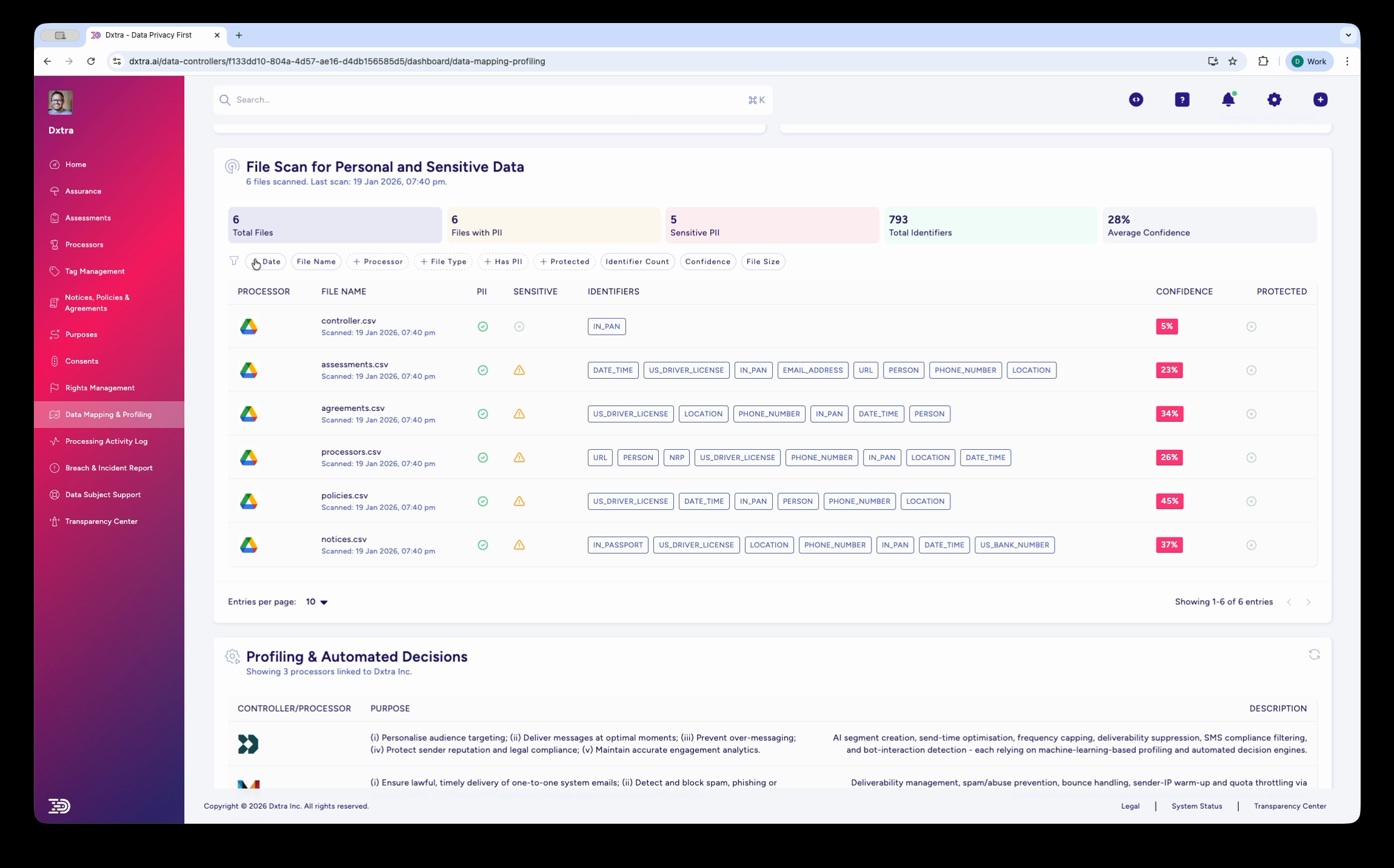
File Scan for Personal and Sensitive Data
The top section displays scan results with summary statistics:
- Total Files — Number of files scanned across all connected processors
- Days with PII — Number of days in which files containing PII were created or modified
- Sensitive PII — Number of files containing sensitive categories of personal data
- Total Identifiers — Total count of individual PII detections across all files
- Average Confidence — Mean confidence score across all detections
Below the stats, a table lists every scanned file with:
| Column | Description |
|---|---|
| Processor | The connected processor the file came from (e.g. Google Drive) |
| File Name | Name of the scanned file with creation/scan timestamp |
| Identifiers | Color-coded badges showing detected PII types (FIRST_NAME, EMAIL, PHONE_NUMBER, etc.) |
| Confidence | Detection confidence as a percentage |
| Protected | Whether the file has protection measures in place |
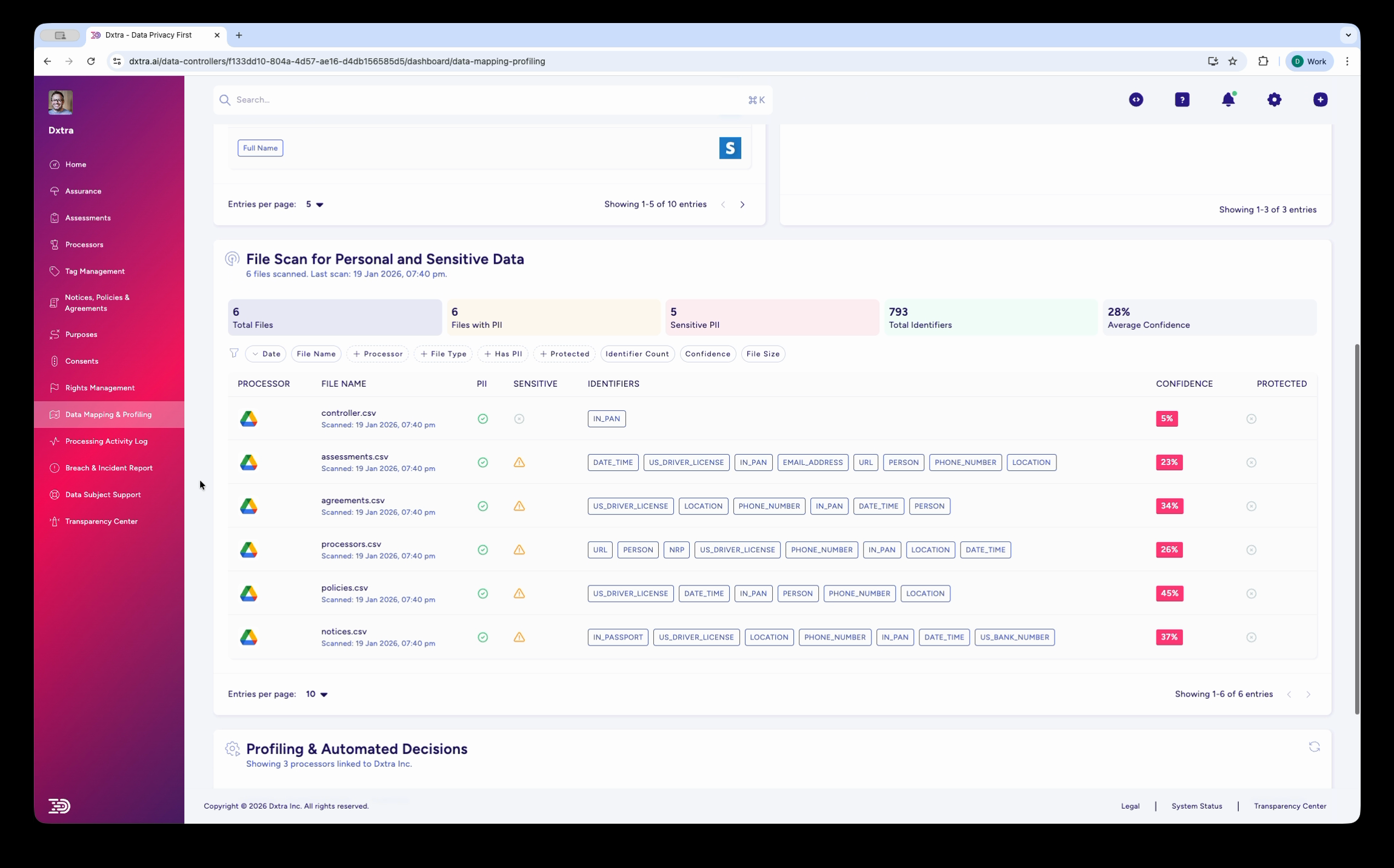
You can filter results using the tabs above the table: Processor, File Name, File Type, Met PII, Protected, Identifier Count, Confidence, and File Size.
Profiling & Automated Decisions
The bottom section of the page shows how your data is used for profiling and automated decision-making. This table lists:
- Controller/Processor — The entity performing the profiling
- Purpose — What the profiling is used for (e.g. audience targeting, spam prevention, engagement analytics)
- Description — Detailed explanation of the processing activity
This section helps you document profiling activities as required by GDPR Article 22 (automated individual decision-making) and similar provisions in other regulations.
Supported identifier types
Dxtra detects a wide range of personal data identifiers across scanned files:
- Identity — FIRST_NAME, LAST_NAME, PERSON, DATE_OF_BIRTH
- Contact — EMAIL, PHONE_NUMBER, LOCATION, ADDRESS
- Government IDs — US_DRIVERS_LICENSE, US_SSN, PASSPORT_NUMBER
- Digital — IP_ADDRESS, URL, USERNAME
- Financial — CREDIT_CARD, IBAN, BANK_ACCOUNT
- Sensitive — MEDICAL_RECORD, BIOMETRIC_DATA, RACIAL_ETHNIC_ORIGIN
Each identifier appears as a color-coded badge on the scanned file, making it easy to see at a glance what types of personal data a file contains.
Supported file formats
Dxtra scans a wide range of file formats including:
- Spreadsheets — CSV, XLSX, XLS, ODS, TSV
- Documents — PDF, DOCX, DOC, TXT, RTF
- Images — PNG, JPG, TIFF, BMP (via OCR)
- Data files — JSON, XML, YAML, Parquet
- Archives — ZIP, TAR, GZ (contents extracted and scanned)
- Email — EML, MSG
OCR support means personal data embedded in images and scanned documents is detected alongside structured data in spreadsheets and databases.
How scanning works
- Connect a processor — Add a file storage processor (e.g. Google Drive) via the Processors page
- Dxtra scans files — The scanning engine analyses files from connected processors, detecting personal data identifiers
- Results populate the table — Each file appears with its detected identifiers, confidence score, and protection status
- Review and act — Use the results to understand your data landscape, respond to data subject requests, and prioritize remediation
Scans run automatically when new files are added or existing files are modified in connected processors. You can also trigger scans manually from the Data Mapping & Profiling page.
Confidence scoring
Every detection includes a confidence score (0–100%) indicating how certain Dxtra is that the identified data is actually PII. Low confidence may indicate false positives — for example, a product code that resembles a phone number format.
Review low-confidence detections manually to confirm whether they are true positives. See review findings for guidance on validating scan results.
Next steps
- Scan files — Connect processors and configure scans
- Review findings — Validate detections and take action on results
Related
- Processor management — Connect file storage processors for scanning
- Processing activity logs — Audit trail for data processing
- Data subject rights management — Use scan results to fulfill access requests
- Assessments — Scanning results inform impact assessments
Not legal advice
AI-generated content does not constitute legal advice. Consult a qualified legal professional for advice specific to your jurisdiction and business context.