Invite team members and configure security
Add your team to collaborate on compliance tasks and secure all accounts with two-factor authentication.
Invite team members
Navigate to Settings > Team & Security. The Team tab displays your current team members with their name, email, roles, last login date, and available actions.
Add a new member
- Click the New Member button in the top-right corner
- The Invite New Member modal opens
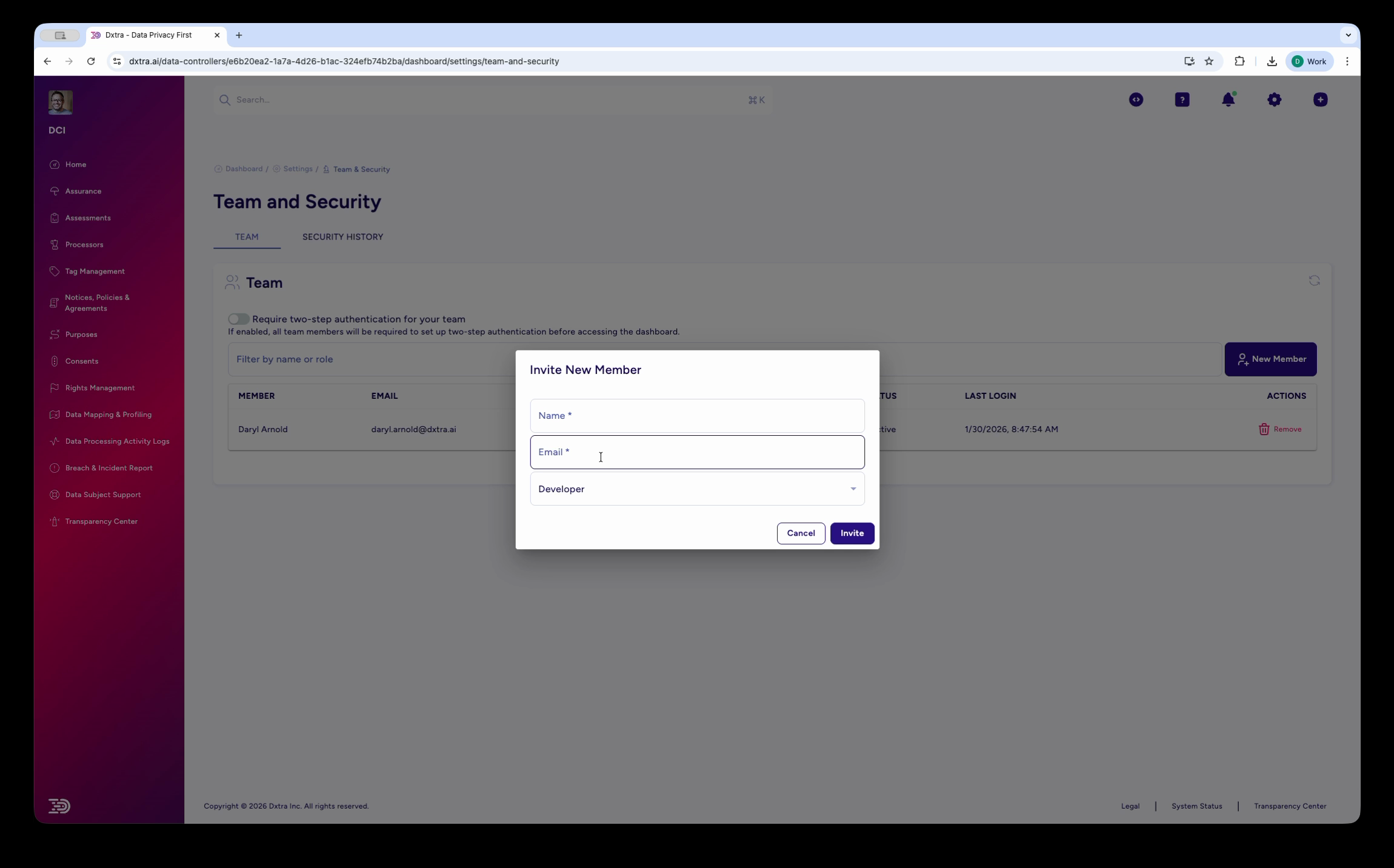
The Team and Security page with the "Invite New Member" modal open. The modal contains fields for Name and Email, and a role dropdown currently showing "Developer." Behind the modal, the Team tab shows the existing team member list with columns for Member, Email, Roles, Last Login, and Actions.
- Enter the team member's Name and Email
- Select their Role from the dropdown:
- Business Owner — Administrative access to manage the organization
- Data Protection Officer (DPO) — Compliance management and oversight access
- Developer — API and integration access for technical setup
- Auditor & Regulator — Read-only access for compliance verification
- Agency/Reseller — Partner-level access for managing client accounts
- Click Invite
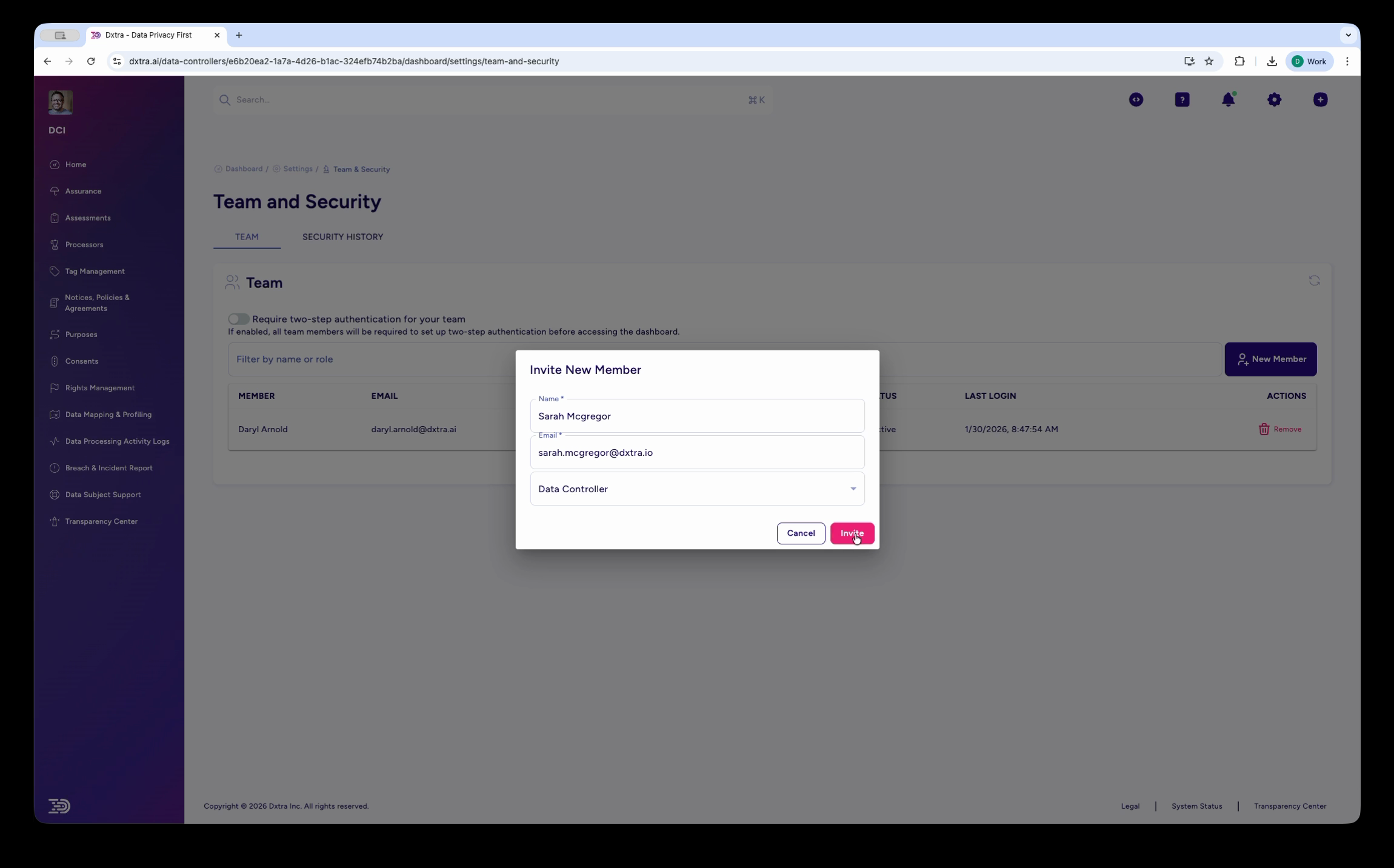
The "Invite New Member" modal with fields filled in — Name, Email, and the role dropdown. The Invite button is highlighted and ready to submit.
The team member receives an invitation email with a link to set up their account. They'll create a password and optionally configure two-factor authentication.
2FA enforcement
Consider enabling the Require two-step authentication toggle (visible at the top of the Team tab) to require 2FA for all team members before they can access the dashboard. This significantly improves account security.
Configure two-factor authentication
Two-factor authentication (2FA) adds a second verification step when signing in, protecting your account even if your password is compromised.
Access security settings
Navigate to My Account (click your profile icon in the top-right corner). The account page shows your User Profile, Language settings, and Security section.
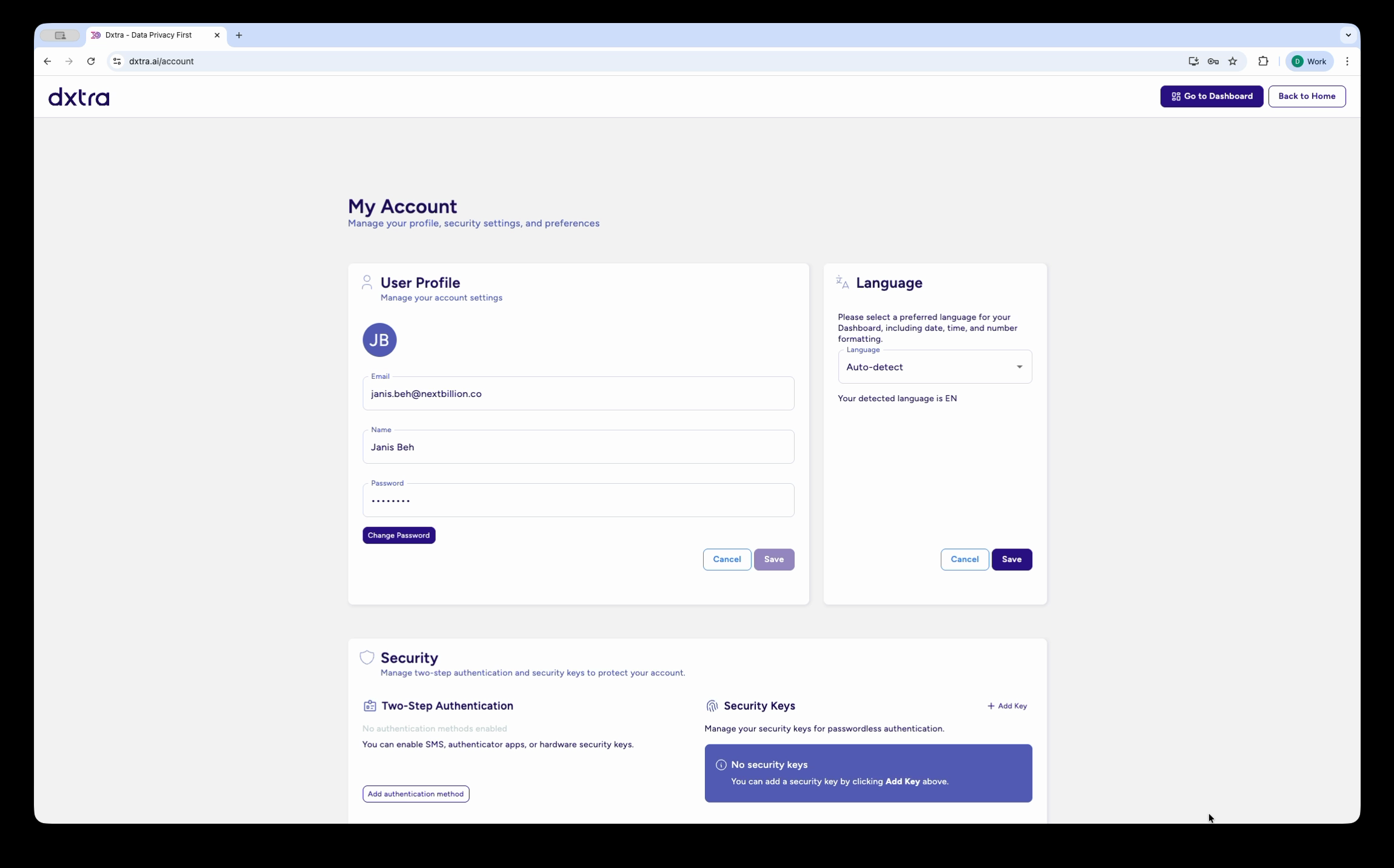
The My Account page at dxtra.ai/account showing three sections: User Profile (avatar, email, name, password with Change Password button), Language (auto-detect dropdown, detected language EN), and Security with Two-Step Authentication and Security Keys options. An "Add Key" button appears in the Security Keys section.
Set up two-step authentication
- In the Security section, click Add authentication method under Two-Step Authentication
- Choose your method:
- Authenticator app (recommended) — Google Authenticator, Microsoft Authenticator, Authy, 1Password, or similar
- SMS verification — Text message codes to your phone number
- Hardware security key — USB FIDO2/WebAuthn key for maximum protection
- Follow the on-screen instructions to link your chosen method
- Enter the verification code to confirm setup
Security keys
For passwordless authentication, you can add security keys (FIDO2/WebAuthn) in the Security Keys section. Click Add Key to register a hardware key or platform authenticator.
Manage login sessions
The Login Sessions section shows all active sessions for your account, including the user, email, roles, and session expiry time. You can sign out of individual sessions or click Sign out of all other sessions to end all sessions except your current one.
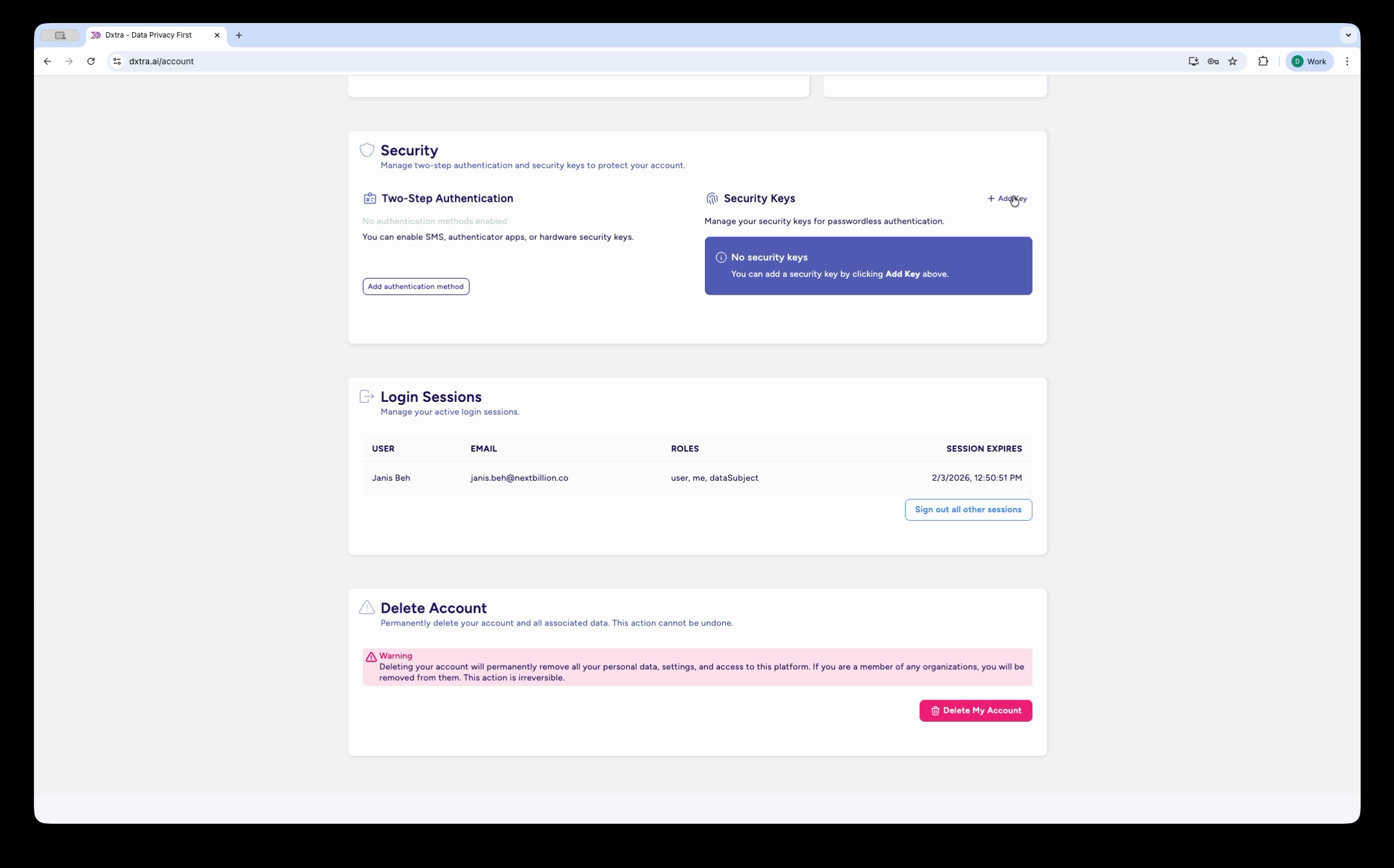
The Security section of the account page showing: Two-Step Authentication with "Add authentication method" button, Security Keys with a "No security keys" message and "Add Key" link, Login Sessions table displaying the current active session (user, email, roles, session expiry), a "Sign out of all other sessions" button, and the Delete Account section with a warning about permanent deletion.
Delete account
The bottom of the Security page shows a Delete My Account option. This permanently deletes your account and all associated data. If you are a member of any organizations, you will be removed from them. This action is irreversible.
What you just configured
With team members invited and 2FA enabled, your organization has:
- Role-based access — Each team member sees only the features relevant to their role
- Secure authentication — Two-factor authentication protects against unauthorized access
- Audit trail — Login sessions and team activity are logged for compliance review
Next steps
- Review your initial compliance setup — Review and approve your AI-generated Version 0
- Configure organization settings — Branding, domain, and organization details
- Workspace onboarding overview — Full onboarding walkthrough