Workspace Onboarding
Welcome to Dxtra! This guide walks you through initial setup so you can start managing privacy compliance immediately.
Time estimate
The complete onboarding process takes approximately 20-30 minutes. You can return to any step later to update your information.
Detailed setup guides
Each step of the onboarding process has a dedicated guide with screenshots and detailed instructions:
- Create an account — Sign up, verify your email, and select a plan
- Complete your data controller profile — The 5-step setup wizard
- Configure organization settings — Organization details, branding, and domain verification
- Invite team members and configure security — Add your team and enable 2FA
- Review your initial compliance setup — Understand and review your AI-generated Version 0
The rest of this page provides a condensed walkthrough of the full onboarding process.
Step 1: Create your account
Start at dxtra.ai and click Sign Up or Start now. Full guide →
You'll need: - Work Email Address — Your login credential and account recovery email - Full Name — Your name as it appears in your organization - Country — Where your organization is located - Password — A strong, unique password (8+ characters, mixed case, numbers)
Create your account and check your email for a verification link. Click the link to confirm your email address.
Email verification
If you don't see the verification email, check your spam folder. You can request a new verification email from the login page if the original link expires.
Step 2: Complete your data controller profile
After email verification, you'll enter the Data Controller Profile wizard. This 5-step setup captures the information Dxtra needs to generate your compliance framework. Full guide →
Step 2a: Select your organization type and operating regions
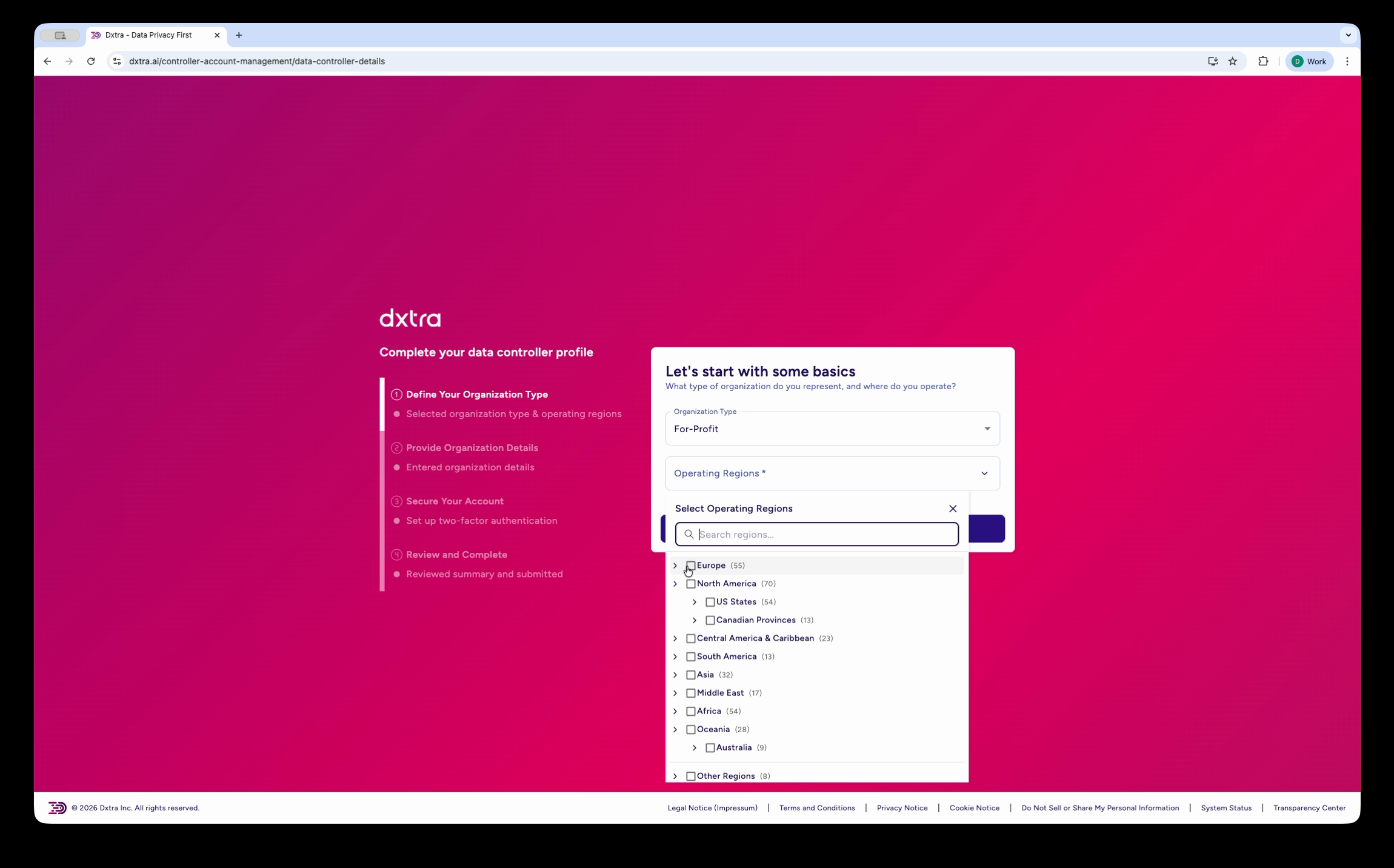
Choose whether your organization is For-Profit or Non-Profit, then select all the regions where you operate and process personal data.
The region selector provides a searchable, hierarchical tree grouped by continent and country (Europe, US States, Canadian Provinces, Central America, South America, Asia, Middle East, Africa, Oceania). You can select individual states, provinces, or entire countries. The regions you select determine which regulatory frameworks Dxtra applies to your compliance program.
Regulatory scope
Be accurate here — if you process data in the EU, you must select EU regions to ensure GDPR requirements are included. If you serve California residents, select US/California.
Step 2b: Provide organization details
Fill in your organization's core information:
- Legal Organization Name (required) — Your official registered business name. This appears in privacy notices and compliance documents.
- Account Name — A short name for your Dxtra workspace (e.g., "Acme Privacy")
- Address — Your principal place of business (Address Line 1, Address Line 2, City, State/Region, Zip Code, Country). This appears in privacy notices and legal correspondence.
- Timezone — Select your organization's primary timezone (e.g., America/Los_Angeles)
- Operating Industries — Search and select industry categories that describe your business (e.g., Computing & Tablets, E-commerce, Financial Services, Healthcare)
- Organization Description — Dxtra's AI generates an initial description based on your industries, which you can review and edit
Step 2c: Add company representatives
Add your organization's key contacts:
- Owner / CEO / President / Managing Director — Name and email
- CFO / Finance Director — Name and email (optional)
- COO / Operations Director — Name and email (optional)
- CTO / IT Director — Name and email (optional)
- General Counsel — Name and email (optional)
- Data Protection Officer (DPO) — Name, email, and contact number (required in some GDPR jurisdictions)
These contacts are referenced in your compliance documentation and regulatory correspondence.
Step 2d: Enable two-factor authentication
Set up two-factor authentication (2FA) to protect your account. You can enable: - Authenticator app — Google Authenticator, Microsoft Authenticator, Authy, 1Password, etc. - SMS verification — Text message codes to your phone - Hardware security key — USB security key for maximum protection
Scan the QR code with your authenticator app and enter the 6-digit code to confirm. Save your backup codes in a secure location for account recovery.
Step 2e: Review and confirm
Review all your selections — operating regions, industries, organization details, and representatives — displayed as a summary. Check that everything is accurate, then accept the Dxtra Terms and Conditions and click Confirm and Submit.
Later updates
You can update all these details anytime in Settings > Organization. See Organization Management for details.
Step 3: Choose your subscription plan
Dxtra offers four plans designed for different organizational needs:
| Plan | Monthly | Best For |
|---|---|---|
| Start | $10 | Small businesses getting started |
| Growth | $25 | Growing organizations needing expanded scope |
| Scale | $100 | Large organizations (up to 1M Data Subjects) |
| Enterprise | $1,000 | Large businesses with custom needs |
Plans differ by the number of domains, AI regenerations, PII scans, language support, and Data Subject IDs processed. Visit dxtra.ai/pricing for full feature comparison.
You can start with any plan and upgrade or downgrade anytime. Dxtra offers a 14-day money-back guarantee — if you're not satisfied, cancel within 14 days for a full refund.
Step 4: Review your auto-generated Version 0
After payment processing, your account becomes active. Dxtra's AI-powered engine automatically generates your Version 0 — your initial compliance framework — in approximately 60 minutes. Full guide →
Your Version 0 includes:
- Assessments — Data Protection Impact Assessments (DPIAs), Legitimate Interests Assessments (LIAs), and other AI-generated assessments relevant to your operating regions
- Notices & Policies — Privacy notices, Cookie notice, Terms & Conditions, Data Processing Addendum (DPA), and related documents
- Consent Configuration — Pre-configured consent types linked to your processing purposes
- Purposes & Legal Basis — Automated categorization of data processing activities based on your industry
- Data Subject Rights Forms — Access, deletion, portability, and rectification request forms
- Transparency Center — A public-facing privacy portal customized for your organization
You'll receive an email notification and in-app confirmation when Version 0 is ready.
Review and customize
Review all auto-generated content carefully. While Dxtra's AI creates a strong baseline, you should customize notices and policies to reflect your specific data practices. Have your legal counsel review before publishing to ensure accuracy.
Step 5: Set up your organization
Configure processing activities
Navigate to Purposes in the sidebar to review and customize your data processing activities. Dxtra generates initial purposes based on your industry. You can:
- Add new processing activities
- Edit descriptions and legal basis
- Link data processors (vendors)
- Update retention periods
Define consent categories
Navigate to Consents to review pre-configured consent categories: - Strictly Necessary - Performance / Analytics - Functional - Targeting / Marketing - Custom categories specific to your business
You can customize consent wording and add new categories if needed.
Register your domain
If you plan to use embedded Dxtra widgets or Tag Manager, register your domain:
- Navigate to Settings > Organization > Domain Management
- Enter your full domain (e.g., mycompany.com)
- Add the generated DNS TXT record at your domain registrar
- Return to Dxtra and click Request DNS Verification
Once verified, you can use embedded widgets on your domain.
Customize your branding
Navigate to Settings > Organization > Branding to upload: - Organization Logo — Your company logo - Logomark — Smaller version for compact layouts - Primary Color — Your brand's primary color (hex code) - Secondary Color — Your brand's secondary color (hex code)
These appear in your Transparency Center and customer-facing materials.
Step 6: Invite team members
Add your team to collaborate on compliance tasks. Full guide →
- Navigate to Settings > Team & Security > Team
- Click New Member button
- Enter team member's email and select their role:
- Data Controller — Full administrative access to the organization's compliance program
- Business Owner — Administrative access to manage the organization
- Data Protection Officer (DPO) — Compliance management and oversight access
- Developer — API and integration access
- Auditor & Regulator — Read-only compliance access
- Agency/Reseller — Partner-level access
Your team members will receive an invitation email and can set up their accounts.
2FA enforcement
Consider enabling the Enforce two-factor authentication toggle to require 2FA for all team members, improving account security.
Step 7: Connect data sources
Add integrations to automatically track data processing activities:
- Navigate to Processors in the sidebar
- Select from pre-integrated platforms:
- E-Commerce: Shopify, WooCommerce
- CRM: Salesforce, HubSpot
- Email: Mailchimp, Klaviyo, Customer.io
- Payments: Stripe, QuickBooks
- Analytics: Google Analytics, Google Ads, Meta/Facebook
- Other: Google Drive, Eventbrite, custom APIs
Follow the guided setup for each integration. You can add more later.
Webhook configuration
For most integrations, you'll copy a webhook URL from Dxtra and paste it into your platform's webhook settings. This enables automatic data sync.
Step 8: Follow the Get Started checklist
The Home dashboard includes a Get Started with Dxtra checklist. Work through each item:
- Onboard a Data Processor — Register your vendors and service providers
- Create a Privacy Notice — Review and approve your auto-generated privacy notice
- Manage Data Subject Rights Requests — Configure your rights request form and make it available to data subjects
- Set up server-side hosting — Register your domain for first-party cookie tracking
- Use a consent form — Select and publish a consent form for your website
- Personalize & publish Transparency Center — Customize branding and publish your privacy portal
Post-launch setup timeline
Week 1: Configure integrations
- Test data syncing with each integration
- Verify data retrieval works
- Run a test data subject access request to confirm workflow
Week 2: Create Transparency Center
- Review your auto-generated Transparency Center
- Customize branding and colors
- Deploy to your website (embed widget or link)
Week 3: Publish privacy notices
- Update your website privacy notice with Dxtra information
- Publish cookie notice if using Tag Manager
- Create a "Do Not Sell My Personal Information" link (for CCPA compliance)
Week 4: Monitor and optimize
- Review first data subject rights requests
- Check integration sync status in the Processing Activity Log
- Gather team feedback
- Make adjustments to notices and consent forms based on user feedback
Best practices
- Be accurate — Ensure processing activities truly reflect your data practices. Inaccurate documentation can create compliance liability.
- Be specific — Generic descriptions are less helpful for compliance. Be detailed about what data you collect and why.
- Get legal review — Have your privacy counsel review your initial notices and DPA before deploying.
- Test everything — Test integrations and rights request workflows with test data before handling real requests.
- Document decisions — Keep records of setup choices and the rationale behind them for regulatory audits.
- Review quarterly — Update your compliance framework quarterly as your data practices evolve.
Troubleshooting
- I missed email verification. Can I request a new link?
- Yes. Return to the login page and use the "Resend verification email" option.
- Can I change organization details after setup?
- Yes. All details set during onboarding can be updated in Settings > Organization anytime. See Configure organization settings.
- How long does Version 0 generation take?
- Approximately 30–60 minutes depending on the complexity of your operating regions and industry mix. You'll receive an email and in-app notification when it's ready.
- Can I add more team members later?
- Yes. Navigate to Settings > Team & Security > Team and click New Member anytime. See Invite team members.
- What if my organization details change?
- Update them in Settings > Organization and consider using AI regeneration to update your notices and assessments.
Next steps
After completing onboarding:
- Review your initial compliance setup — Understand and review your AI-generated Version 0
- Respond to your first data subject request →
- Manage Transparency Center →
- Configure settings →
- Connect more integrations →
Not legal advice
AI-generated content does not constitute legal advice. Consult a qualified legal professional for advice specific to your jurisdiction and business context.