Complete your data controller profile
After creating your account, Dxtra walks you through a 5-step wizard to capture your organization's details. This information drives everything the AI engine generates — privacy notices, assessments, consent templates, and your Transparency Center.
The data controller profile wizard
The wizard presents a multi-step flow with a progress sidebar on the left. You can complete it in 5–10 minutes.
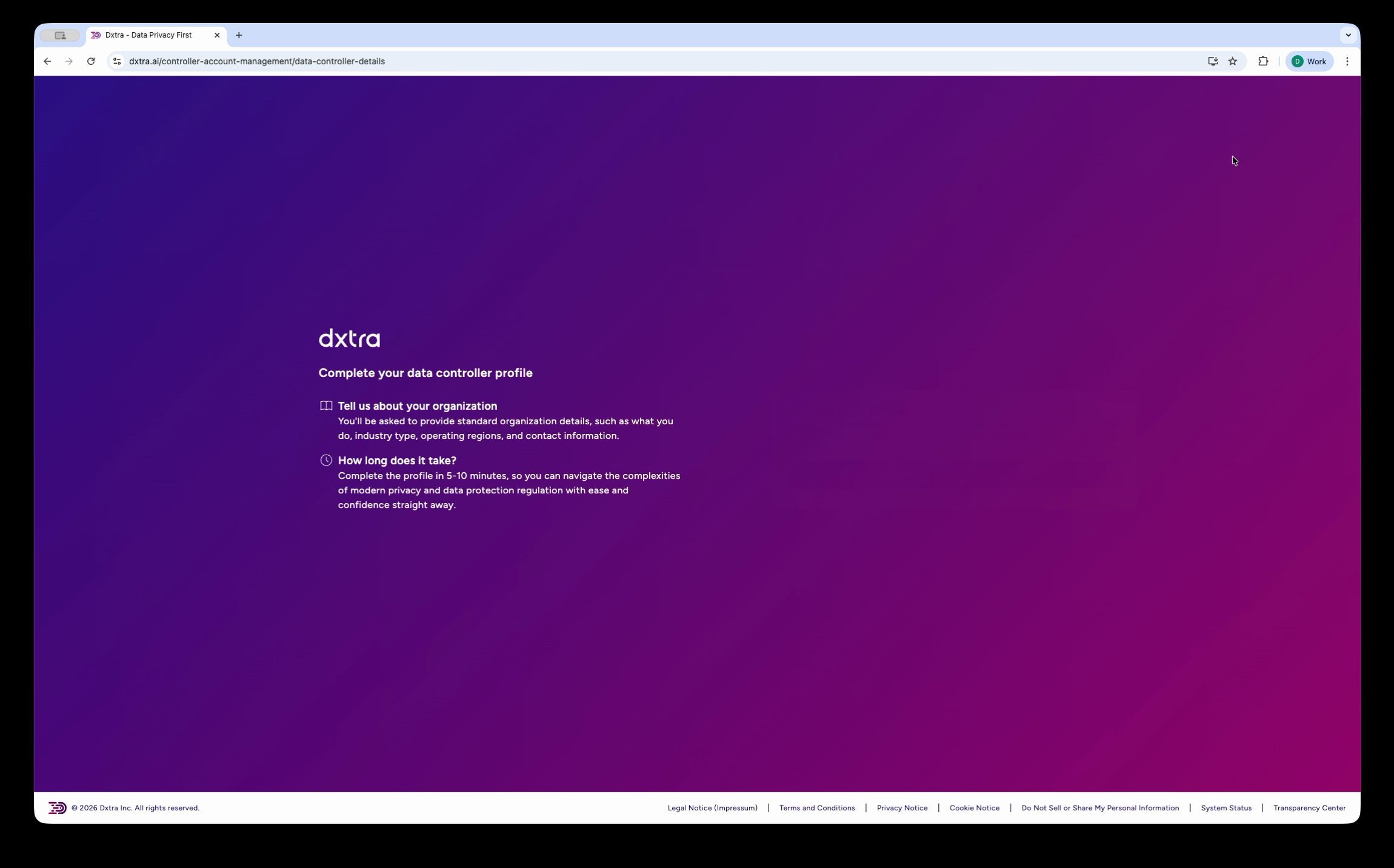
The data controller profile wizard introduction page with a purple-to-pink gradient background, the Dxtra logo, and the heading "Complete your data controller profile." Two sections explain what information you'll provide and that the process takes 5–10 minutes.
Step 1: Define your organization type
Choose whether your organization is For-Profit or Non-Profit. This classification helps Dxtra tailor compliance guidance to your organizational structure.
Step 2: Select industries and operating regions
Select all the industries that describe your business and the regions where you operate and process personal data.
Operating industries — Search and select from categories like AgTech & Precision Farming Services, Computing & Tablets, E-commerce, Education Technology, Financial Services, Healthcare, Smart Building & PropTech Solutions, and many more.
Operating regions — A searchable, hierarchical tree grouped by continent, country, and state/province. Select individual regions or entire countries. This determines which regulatory frameworks Dxtra applies to your compliance program.
Regulatory scope
Be accurate here. If you process data in the EU, select EU regions to ensure GDPR requirements are included. If you serve California residents, select US/California for CCPA/CPRA coverage.
Step 3: Provide organization details
Fill in your organization's core information:
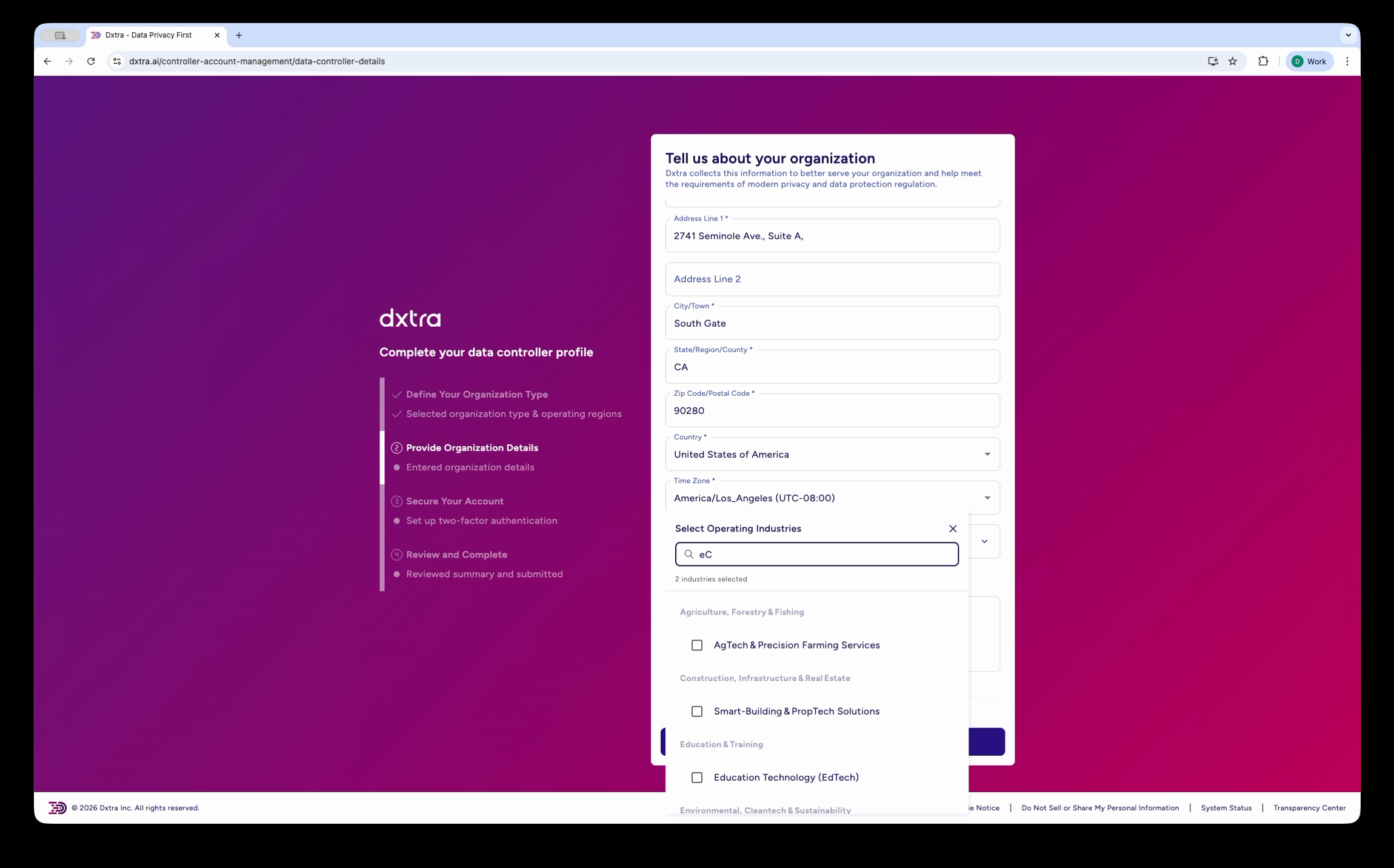
The "Tell us about your organization" step showing the progress sidebar on the left and a form on the right with fields for Address Line 1, Address Line 2, City/Region/State, Zip Code, Country (United States of America), Timezone (America/Los_Angeles), and the "Select Operating Industries" dropdown with checkboxes for industry categories.
The form collects:
- Address — Your principal place of business (street, city, state, zip, country). This appears in privacy notices and legal correspondence.
- Timezone — Your organization's primary timezone.
- Operating Industries — Confirm or update the industries selected in the previous step.
Step 4: Add company representatives
Add your organization's key contacts. These are referenced in compliance documentation and regulatory correspondence:
- Owner / CEO / President / Managing Director — Name and email (required)
- CFO / Finance Director — Name and email (optional)
- COO / Operations Director — Name and email (optional)
- CTO / IT Director — Name and email (optional)
- General Counsel — Name and email (optional)
- Data Protection Officer (DPO) — Name, email, and contact number
DPO requirement
Organizations subject to GDPR must appoint a DPO if they are a public authority or if their core business involves systematic large-scale processing of personal data. Many organizations appoint a DPO voluntarily as a best practice.
Step 5: Secure your account
Set up two-factor authentication (2FA) to protect your account. Options include authenticator apps (Google Authenticator, Microsoft Authenticator, Authy, 1Password), SMS verification, or hardware security keys.
Step 6: Review and confirm
The final screen displays all your selections — operating regions, industries, organization details, and representatives — as a summary with tag chips.
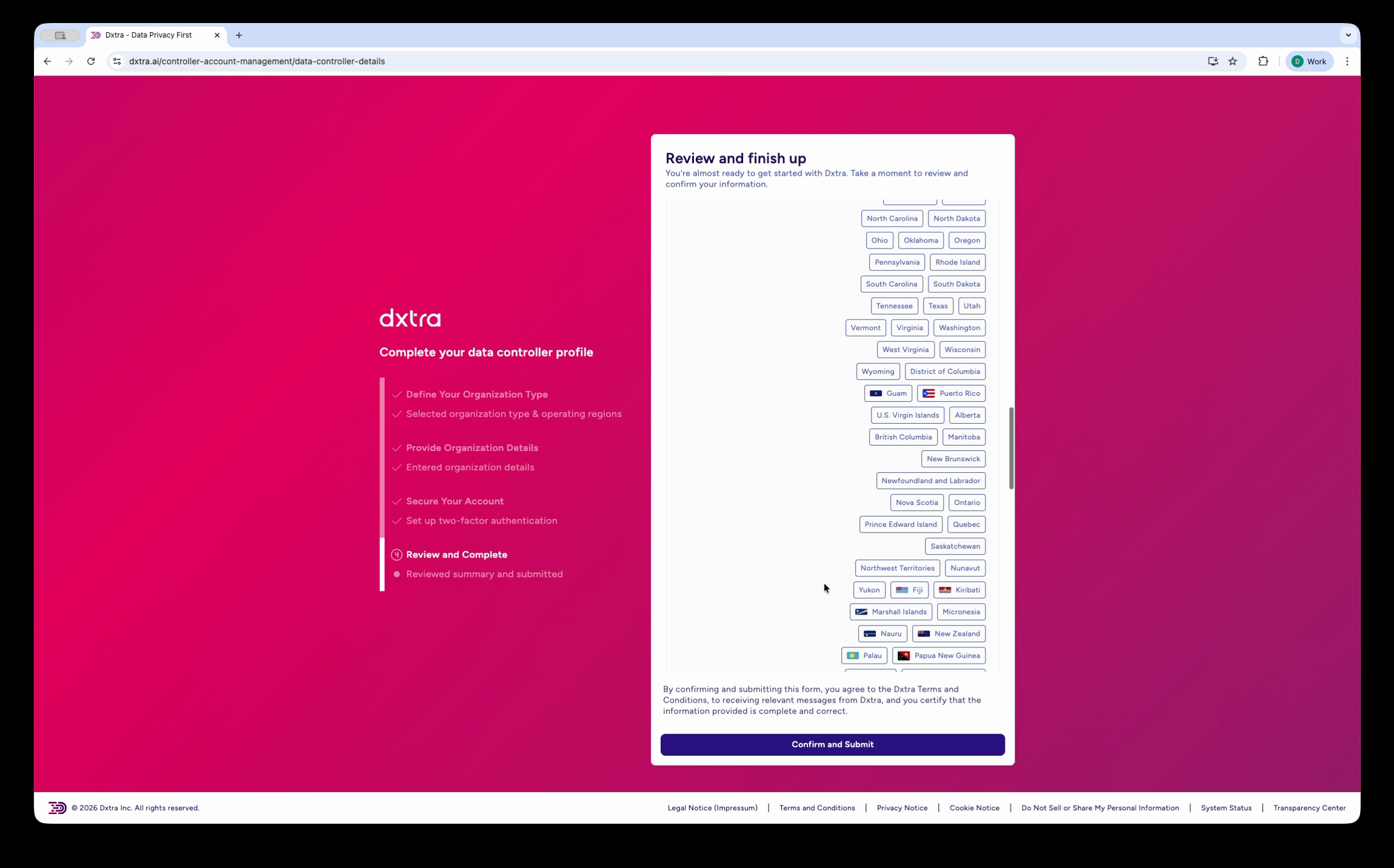
The "Review and finish up" step showing all selected operating regions and industries as colored tag chips. The progress sidebar on the left shows "Review and Complete" as the current step. A "Confirm and Submit" button appears at the bottom along with a note about accepting Dxtra's Terms and Conditions.
Review everything for accuracy. Accept the Dxtra Terms and Conditions, then click Confirm and Submit.
What happens after submission
Once you submit, Dxtra's AI engine begins generating your Version 0 compliance framework. This takes approximately 30–60 minutes depending on the complexity of your operating regions and industry mix.
Your Version 0 includes AI-generated assessments, privacy notices, consent configuration, processing purposes, data subject rights forms, and a Transparency Center — all tailored to your organization's context.
You'll receive an email notification and an in-app confirmation when Version 0 is ready. See Review your initial compliance setup for details on what's generated and how to review it.
Update anytime
You can update all organization details after setup in Settings > Organization. Changes trigger options to regenerate affected compliance documents.
Next steps
- Review your initial compliance setup — What Version 0 includes and how to review it
- Configure organization settings — Branding, domain, and detailed organization configuration
- Workspace onboarding overview — Full onboarding walkthrough