Application
The Dxtra application at app.dxtra.ai is your central hub for managing privacy compliance, responding to data subject requests, tracking consent, and monitoring your compliance program.
Dashboard Sections
Onboarding
Setup wizard for new workspaces →
Get started with Dxtra in minutes. Configure your workspace, connect data sources, and launch your first compliance features.
Data & Documents
Manage documents and compliance records →
Upload, organize, and manage privacy documents, processing activities, data handling procedures, and compliance evidence.
Rights Management
Respond to data subject rights requests →
Intake, process, and fulfill access, deletion, rectification, and portability requests with deadline tracking and audit trails.
Team Management
Manage workspace users and permissions →
Add team members, assign roles, manage permissions, and configure workspace settings for your privacy team.
Billing
Manage subscription and billing →
View your plan, manage payment methods, download invoices, and track usage.
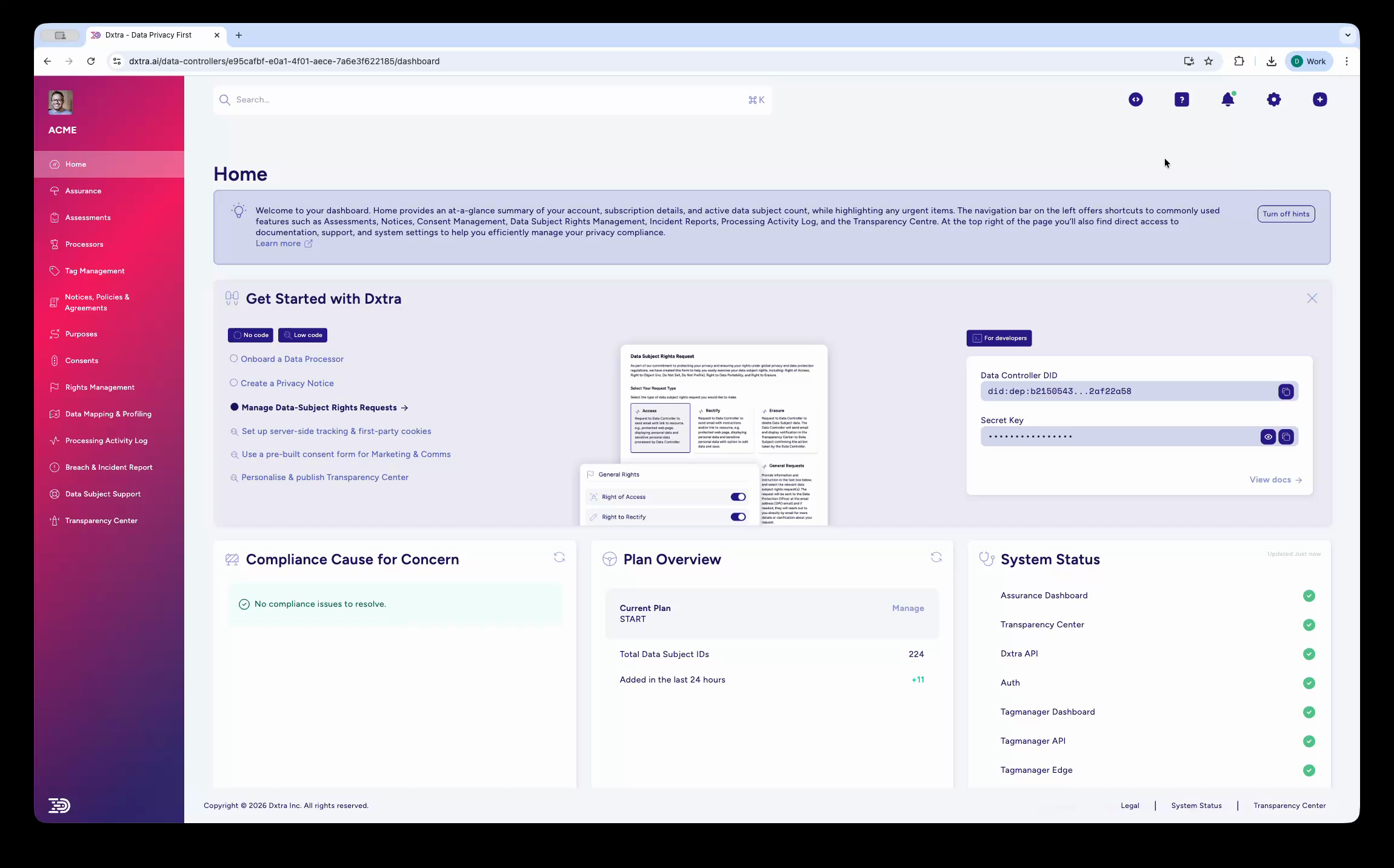
Dashboard Layout
The dashboard is organized into:
- Sidebar Navigation — Quick access to all sections
- Top Menu Bar — Search, notifications, user menu, workspace switcher
- Main Content Area — Context-specific content and actions
- Context Panels — Details, filters, and quick actions
Getting Around
Search
Use the search bar to:
- Find DSRR requests by email or ID
- Search documents and resources
- Look up contact information
- Search for settings
Keyboard Shortcut: Cmd+K (Mac) or Ctrl+K (Windows/Linux)
Notifications
Bell icon shows:
- Approaching DSRR deadlines
- New DSRR submissions
- System updates and maintenance
- Important alerts
User Menu
Click your avatar for:
- Profile settings
- API keys
- Workspace switcher
- Documentation
- Support
Common Tasks
Submit a DSRR from Customer
- Go to Rights section
- Click + New Request
- Enter customer email
- Select request type (Access, Deletion, Rectification, etc.)
- Click Create Request
View Compliance Calendar
- Go to Compliance section
- See upcoming deadlines and milestones
- Filter by regulation or request type
- Click event for details
Manage Team Access
- Go to Team section
- Click Add Member
- Enter email and select role
- Set specific permissions
- Click Invite
Connect an Integration
- Go to Settings → Integrations
- Click Add Integration
- Choose platform (Shopify, Salesforce, Mailchimp, etc.)
- Follow platform-specific setup steps
- Verify connection
Create a Processing Activity
- Go to Documents section
- Click + Processing Activity
- Enter activity details (name, legal basis, processors, retention)
- Click Create
- Activity appears in Transparency Center
Dashboard Insights
Key Metrics
- DSRR Volume — Requests received this period
- Compliance Rate — % of requests completed on-time
- Consent Distribution — How many customers opted in/out per category
- Data Sources — Connected systems and integration status
Widgets
Customize your dashboard view:
- Drag to reposition widgets
- Click settings icon to customize
- Hide/show specific widgets
- Save multiple layouts
Keyboard Shortcuts
| Shortcut | Action |
|---|---|
Cmd+K / Ctrl+K | Search |
? | Show shortcuts help |
/ | Focus search |
G then D | Go to Dashboard |
G then R | Go to Rights |
G then C | Go to Compliance |
G then T | Go to Team |
Esc | Close modal/focus main area |
Mobile & Tablet
The dashboard is responsive and works on:
- Desktop (1200px+)
- Tablet (768px-1200px)
- Mobile (375px-768px)
Sidebar collapses on smaller screens. Navigate via hamburger menu.
Next Steps
Getting Started: Check out the Onboarding guide →
Not legal advice
AI-generated content does not constitute legal advice. Consult a qualified legal professional for advice specific to your jurisdiction and business context.