Tag Management
The Tag Management page connects your Dxtra workspace to the Tag Manager portal, where you configure privacy-first analytics, consent enforcement, and event tracking.
URL path: /data-controllers/{id}/dashboard/tag-management
Access: Select Tag Management in the left sidebar.
What you see
The page has two sections:
- Tag Management Domain — Select which verified domain to use for tag management
- Tag Manager Login — Authenticate with SSO to access the full Tag Manager portal
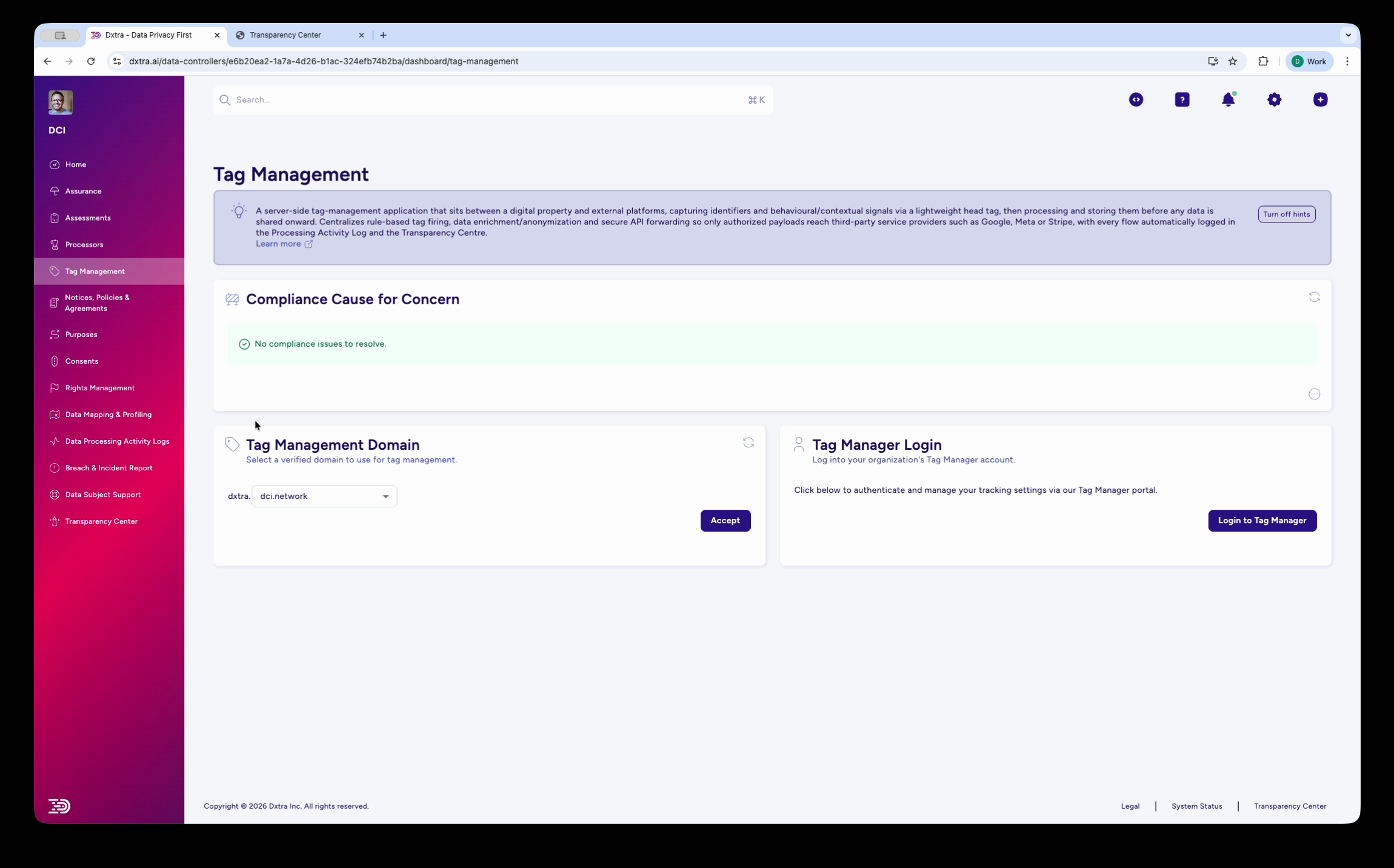
The Tag Management dashboard showing the domain selector dropdown and Tag Manager Login button.
Connect to Tag Manager
- Select your domain from the Tag Management Domain dropdown
- Click Accept to confirm the domain selection
- Click Login to Tag Manager to open the Tag Manager portal in a new tab
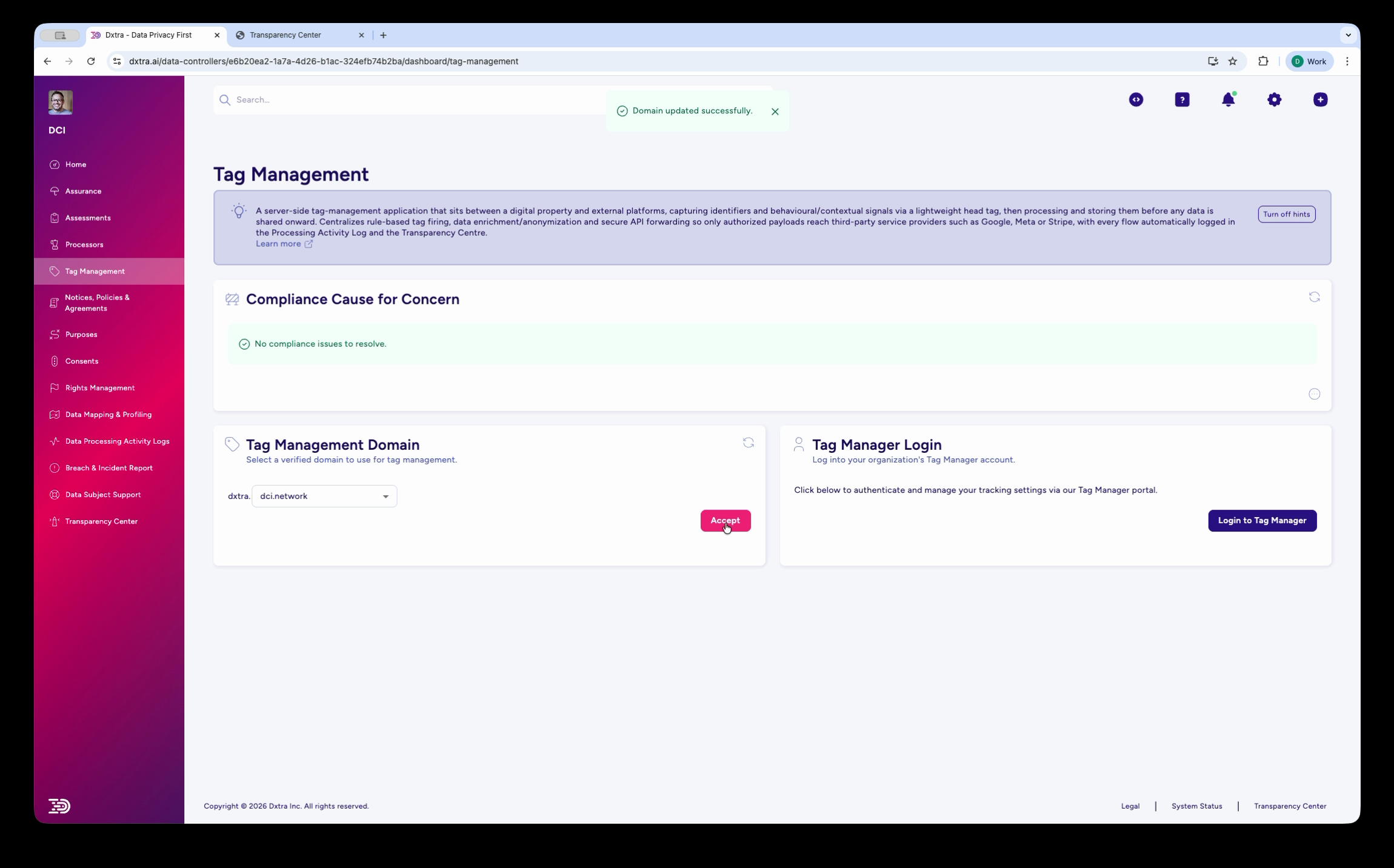
The Tag Management page after domain selection, showing a "Domain updated successfully" confirmation.
The Tag Manager portal opens at tagmanager.dxtra.ai using single sign-on (SSO) — no separate login required.
Tag Manager portal
The Tag Manager portal (tagmanager.dxtra.ai) has its own sidebar with seven sections:
| Section | What it does |
|---|---|
| Analytics | Dashboard showing analytics metrics and charts for your domain |
| Errors | Error monitoring — users with errors, total errors, errors per user |
| Revisions | Version history of your tag configuration. Table shows Name, Page Views, Locked status, Created date, and Actions. All published revisions are locked. |
| Environments | Manage deployment environments (e.g. Production). Shows custom domain, install domain, and linked revision. |
| Installed Platforms | Platforms running your tag configuration (e.g. "DXTRA Tag Manager Core") |
| Organizations | Organization management within the Tag Manager |
| Notifications | Notification settings for Tag Manager events |
Info
The Tag Manager portal is a separate application from the main Dxtra dashboard. It opens in a new browser tab and has its own navigation. For detailed setup instructions, see the Tag Manager installation guide.
How consent enforcement works
Tag Management integrates with Dxtra's consent categories:
- Strictly Necessary tags (session, security) fire immediately — no consent required
- Analytics tags fire only when the data subject grants analytics consent
- Marketing tags fire only when marketing consent is granted
- Targeting/Advertising tags fire only when targeting consent is granted
When a data subject withdraws consent, the corresponding tags stop firing automatically.
Related
- Tag Manager overview — Full Tag Manager documentation
- Install the Tag Manager — Add the tracking script to your site
- Consent enforcement — How consent categories control tag firing
- JavaScript API — Programmatic Tag Manager control
- Tag configuration — Configure individual tags
- Consents — Manage consent categories