Home dashboard
Your Home dashboard is the first thing you see when you log into Dxtra. It provides a complete snapshot of your organization's compliance status, subscription details, and quick access to the most important actions.
What you'll learn
- Overview of your account and subscription status
- Understanding your compliance status
- Interpreting alerts and action items
- Using quick-action shortcuts
- Accessing documentation and support
Dashboard overview
Step 1 — Dashboard home showing your privacy compliance overview and status indicators
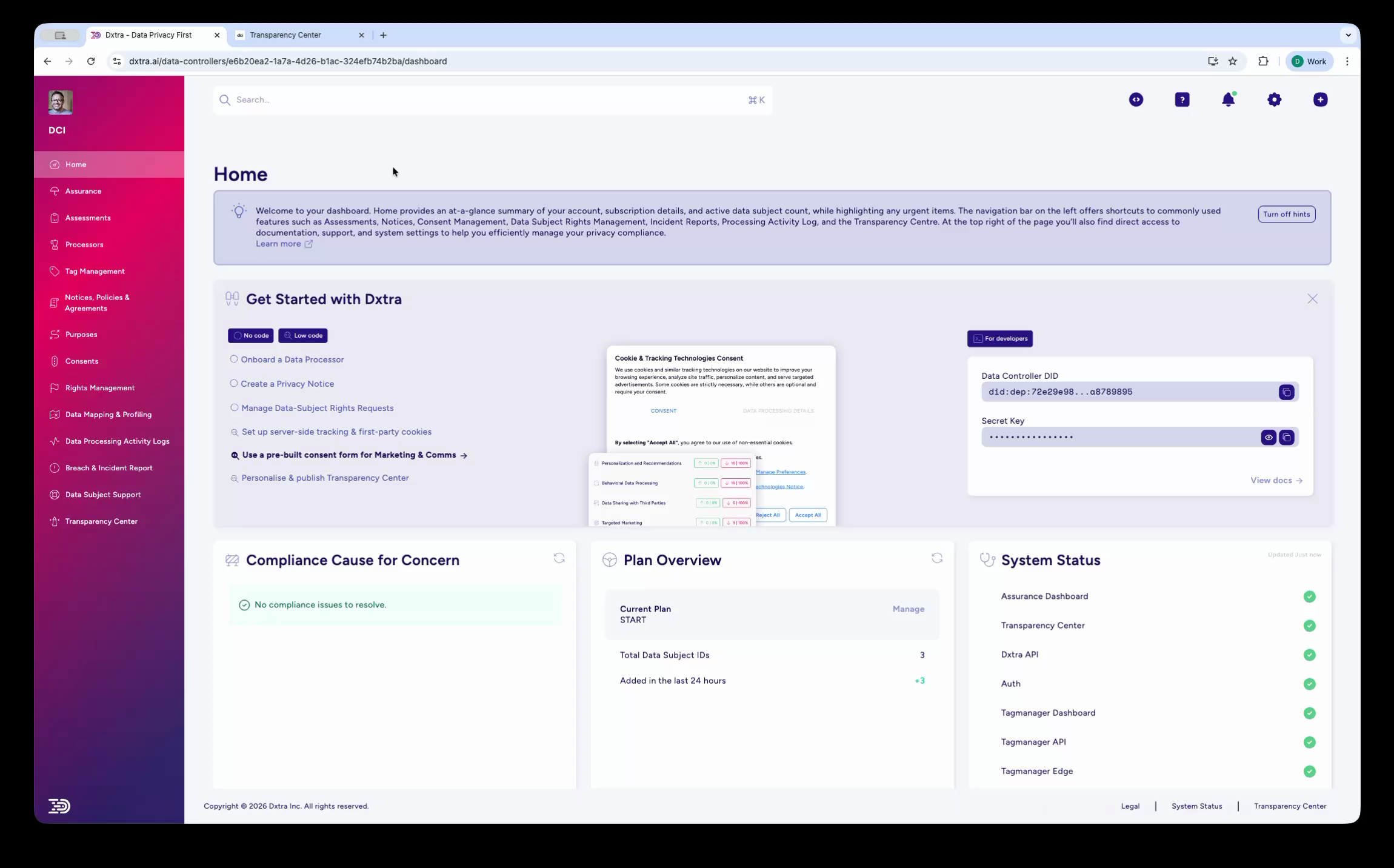 Your Home dashboard provides a complete snapshot of compliance status and actionable items
Key dashboard sections
Account & subscription details
In the top section of your Home dashboard, you'll see critical account information:
- Subscription Status
- Your current plan (Start, Growth, Scale, or Enterprise) and renewal date. If your subscription expires soon, a warning badge appears here.
- Data Controller DID
- Your organization's unique identifier in Dxtra. Share this with data subjects and regulators as proof of your identity. Click to copy to clipboard.
- Current Plan
- The name and features of your active subscription. Click Upgrade to view higher tiers, or Manage Billing to update payment details.
- Data Subject IDs Under Management
- How many individual data subjects your organization is tracking. This number grows as you receive data subject requests or record consents.
- Storage Used
- How much of your plan's storage you've consumed (documents, assessments, data mapping). Upgrade if running low.
Compliance status & highlights
Your compliance dashboard displays:
- Overall Compliance Status
- An indicator showing how well your organization meets applicable regulations. See Assurance for details on how compliance scores are calculated.
- Trend Chart
- A visual graph showing how your compliance status has changed over recent months. A rising trend indicates improving compliance; a declining trend suggests work is needed.
- System Status
- Quick indicator of Dxtra's platform health. If anything is down or degraded, it appears here with a link to the status page.
Alerts & items needing attention
The dashboard flags important items requiring action:
- Red Alerts (Urgent)
- Regulatory deadlines approaching or critical vulnerabilities. - Example: "DPIA expires in 7 days" - Example: "Data Processor Agreement missing for [Vendor Name]"
- Yellow Warnings (Recommended)
- Best practices or improvements that would strengthen your program. - Example: "Update Privacy Notice to reflect new purpose" - Example: "3 data subjects awaiting response"
- Blue Info (FYI)
- Informational updates or optional improvements. - Example: "New CCPA guidance published" - Example: "New feature available"
Click any alert to jump directly to the relevant section (e.g., click an assessment alert to open that assessment).
Quick actions
Common tasks you'll perform regularly are highlighted as quick-access buttons:
- Complete Assessment
- Start or resume an assessment (DPIA or other evaluation). Click to choose which type.
- Add Data Processor
- Register a new vendor or third-party processor who accesses your data.
- Generate Privacy Notice
- Create or update your organization's privacy notice. Dxtra auto-generates a compliant template you can customize.
- Define Purposes
- Document a new reason you process personal data (e.g., "Marketing Communications").
- Create Consent Box
- Add a consent form to your website for users to opt into specific processing activities.
- Report Security Breach
- Notify Dxtra of a potential data security incident and generate regulatory breach notifications.
- Open Transparency Center
- View your public-facing compliance portal as data subjects see it. Use this to verify your privacy information appears correctly.
Each button opens a guided workflow to help you complete the task quickly.
Using your home dashboard effectively
Daily use
- Morning check-in (5 minutes)
- Review alerts and compliance status. Identify high-priority items requiring attention today.
- Action on alerts
- Click alerts to open relevant sections and address them.
- Track progress
- Monitor your compliance trend. A rising trend indicates you're building an effective program.
Weekly review
- Assess backlog
- Check if any time-sensitive items are accumulating (overdue requests, expiring agreements, pending assessments).
- Review status
- Check your overall compliance indicators and identify the biggest gaps.
- Adjust priorities
- Use alerts to guide your weekly focus areas.
Monthly planning
- Trend analysis
- Evaluate your status trend over the past month. Are improvements accelerating or stalling?
- Update settings
- Ensure organization details, team members, and billing information remain current.
- Review commitments
- Check your data subject request response commitments and other regulatory timelines.
Top bar features
The dashboard top bar provides quick access to global tools available from any page.
Search (⌘K)
Press ⌘K (or Ctrl+K on Windows) to open full-text search across the entire application. Search for data subjects, processors, documents, settings, or any content in your workspace.
Task (+) quick actions
Click the + button in the top bar to access six shortcuts for common tasks:
- Upload Document — Upload a document to your workspace
- Onboard Processor — Start the processor onboarding wizard
- Add Purpose — Create a new processing purpose
- Create Consent Form — Build a new consent collection form
- Breach & Incident Reports — Start a new breach report
- Custom FAQ — Add a custom FAQ to your Help Center
AI Assistant
Click the ? icon in the top bar to open the AI Assistant Help & Support panel. The panel provides:
- Quick links to developer docs and support articles
- Get help with suggested questions (e.g. "How do I set up my Transparency Center?")
- Troubleshoot with diagnostic questions
- Report & track issues — link to submit bug reports
- Chat input with attachment capability for asking the AI assistant any question about Dxtra
Notifications
Click the bell icon to view recent notifications — new DSRRs, document generation completions, compliance alerts, and system updates.
Settings
Click the gear icon to access the Settings Hub with eight configuration cards.
Documentation & support
Below quick actions, you'll find links to help resources:
- Getting Started
- Onboarding guides for new Dxtra users.
- Feature Guides
- In-depth documentation for specific features.
- Best Practices
- Guidance on compliance strategy and privacy program management.
- API Documentation
- Reference for integrating Dxtra with your systems.
Help & support
Quick access to Dxtra's support team:
- Contact Support
- Open a support ticket for technical issues or urgent questions at support@dxtra.ai. Expected response time varies by plan: - Start: 48 hours - Growth: 24 hours - Scale: 4 hours - Enterprise: 1 hour
- System Status Page
- Check real-time status of Dxtra's platform at dxtra.instatus.com.
Troubleshooting
- Status not updating
- Changes to assessments or documents may take up to 5 minutes to reflect. Refresh the page or wait and check again.
- Can't see team section
- This section only appears on Growth plans and above, or if you're the account owner or administrator.
- Alerts keep reappearing
- Mark alerts as resolved by clicking the X next to them. Some system alerts reappear automatically if the underlying issue persists.
- Performance issues
- If your dashboard loads slowly, clear your browser cache and try again.
Next steps
- Review your compliance status and address alerts
- Complete an assessment to document your current compliance practices
- Register your first data processor to track vendor compliance
- Invite team members to collaborate on your compliance program
For more help, contact Dxtra support at support@dxtra.ai